Searching for a bookmark
Search for added bookmarks. Play the bookmarked videos you find and export them as video files.
To search for a bookmark
- On the Home page, click Bookmarks.
- In the Bookmarks panel on the View tab, select the desired bookmark from the list and right-click it to display the shortcut menu. Click Open in bookmarks tab to move to the Bookmarks tab.
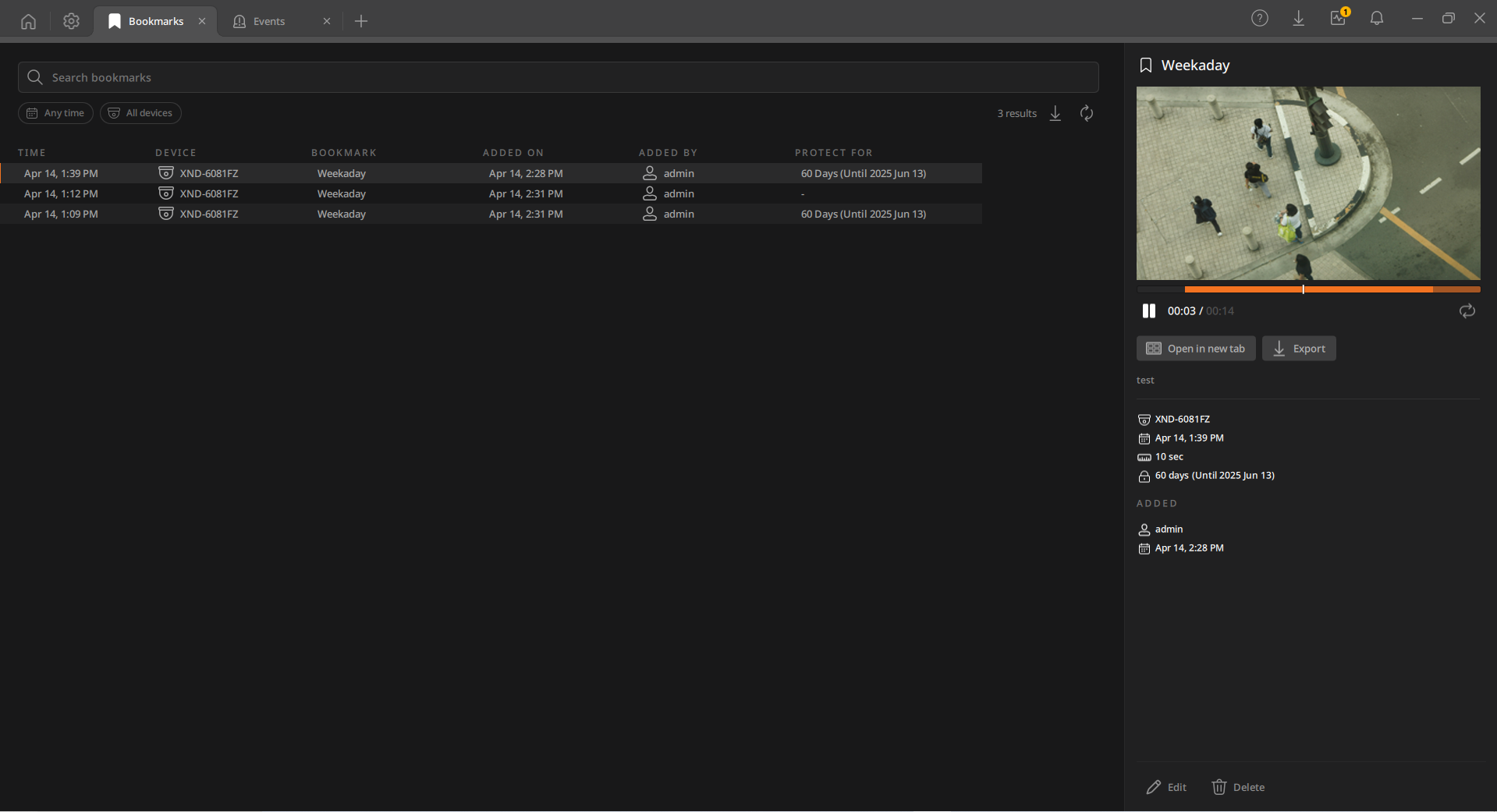
- In the Bookmarks log panel, select a filter to use to search for events.Note: The default setting for each search filter is All.
- Search bar: Enter bookmark information such as bookmark name, device name, or description to search for the desired bookmark.
- Date and time: Click the date filter to display a calendar window.
Set the start/end date and time range to search for events in the
calendar window and click
 .
.- Select Any time to set the search range from the start to the end of the videos stored on the server. Select Last 1 hour, 12h, 24h, or 7d to search based on the current time.
- Device: Click the device filter, and a list of devices to search
will appear. Select the device you want to search for videos and
click Select.
- Select All devices to select all devices connected to BLAZE.
- Enter the device name in the search bar to quickly search.
- Events with selected filters applied will be displayed in the Bookmarks log panel.
- Time: Displays the time of occurrence of an event.
- Devices: Displays the name of the device on which the event occurred.
- Bookmark: Displays the name of the bookmark.
- Added on: Displays the time the bookmark was added.
- Added by: Displays the user who added the bookmark.
- Protected for: Displays the deletion protection period set for the bookmark.
 : Saves the bookmark search results as a CSV file. The CSV file is saved in the Media folder in the path set in Client settings.
 : Refreshes the bookmark search results.
- Click the desired bookmark in the Results panel, and the Bookmark Details panel appears.
- In the Details panel, view the bookmark details and play the video or export it to a file.