
Adding a bookmark
Select a section of stored video and add a bookmark. A bookmark can be added by selecting the desired segment on the Timeline panel or by selecting a specific event in the Events panel. Added bookmarks can be viewed in the Timeline panel, the Bookmarks panel, or the Bookmarks tab.
To add a bookmark to a video
- Select the device in the Devices or Layouts panel.
- On the Timeline panel, select the section to save and click
 in the shortcut menu.
- In the Events panel, select the event, right-click to open the shortcut menu, and click Add bookmark.
- In the Add bookmark dialog, drag to select the section on the timeline where you want the bookmark.
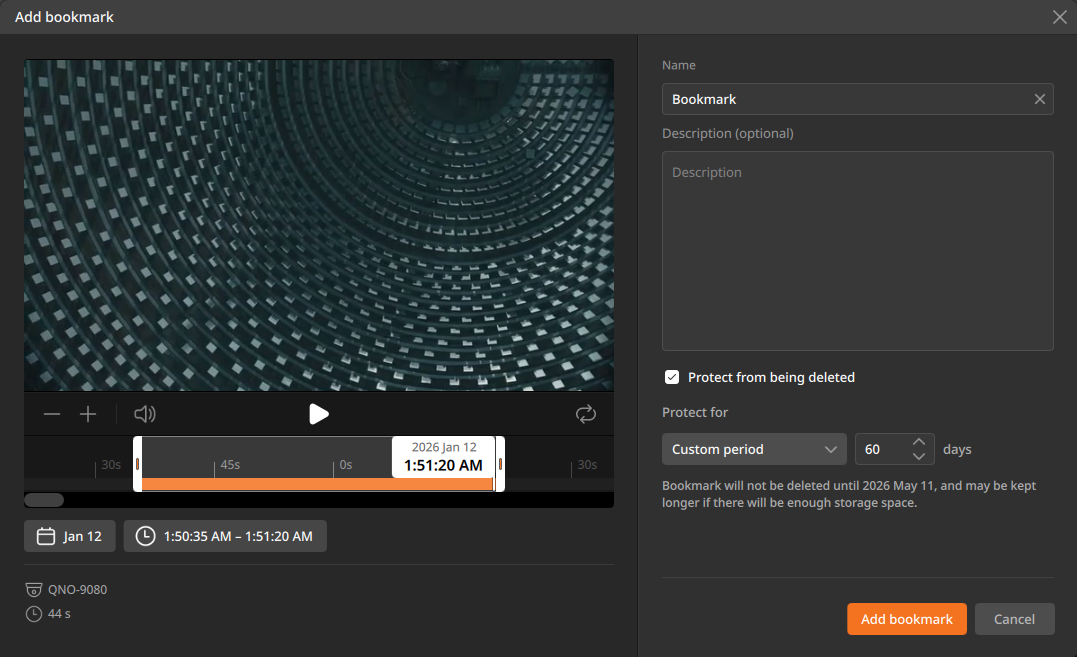
- Play the video on the preview screen.
- Drag the start and end handles on the timeline to adjust the selection.
- Click the date or time at the bottom of the timeline to select a specific range.
- Enter a name and description for the bookmark.
- Select Protect from being deleted to set a retention period to prevent deletion.
- Custom period: Enter a value between 1 and 9999. If no retention period is set, the bookmark may be deleted along with the recorded video. If the server has enough storage, bookmarks can be retained longer than the set period.
- Indefinitely: Prevent the bookmark from being deleted without specifying a period.
- Click Add bookmark.