
Using system federation in the cloud
Connecting Hanwha Vision Cloud with BLAZE enables federation mode, which links a single server or a cluster of two or more servers. While a standard BLAZE client can only connect to one system at a time, federation mode enables selecting devices from multiple systems within an organization for monitoring and video playback.
To enter federation mode, select an organization on the BLAZE login screen and sign in with a cloud account. In the connection list, select the organization name, indicated by a building icon, and click Connect. In federation mode, only the View and Settings menus are available.
-
On the View tab, selecting a system within the organization shows all devices for that system. Use the cross-system layout feature to monitor cameras from different systems simultaneously in a single layout.
-
On the Settings page, only Users, Roles, and Client settings menus are available, which are used for functions such as global user management. Device management functions, like managing cameras or recording servers, are not supported in federation mode. To configure such devices, you must be connected to the individual system.
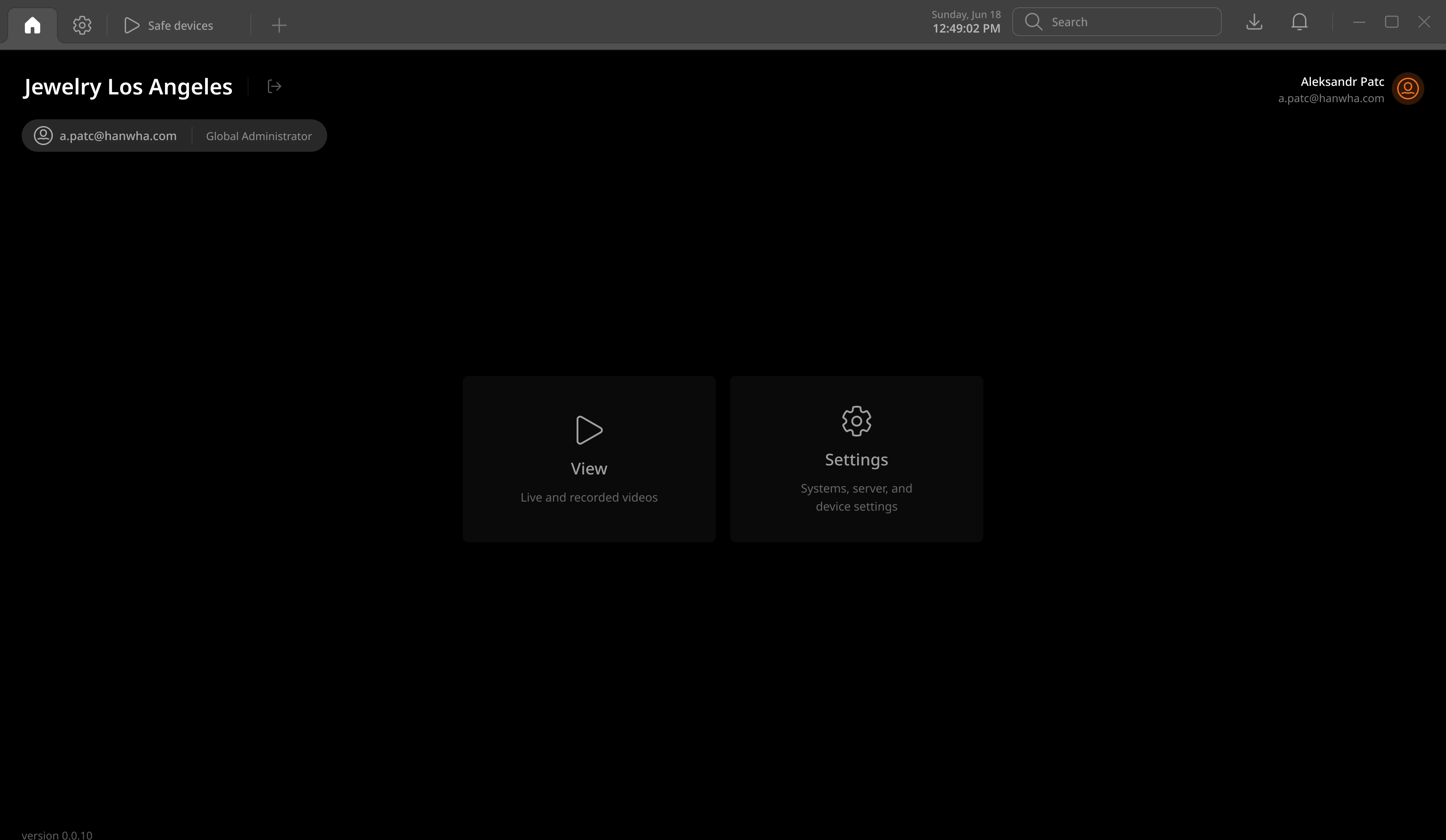
Note: Selecting an individual system under a federation on the login screen connects in standard mode, not federation mode. In standard mode, the available client menus are determined by user permissions, just as they are for a local user.
Federation mode and user permissions
When connected in federation mode after selecting an organization, view and manage global account users. The list of users displayed depends on the permissions of the logged-in user.
- In federation mode, users can only access the client’s View and Settings menus.
Note:
- Only a Global super administrator or a Global administrator can add global privileged users.
- Global privileged users can be added when a system is added to the organization.
- Global privileged users can only be managed from the BLAZE desktop client while in federation mode.
- Global privileged users: Users who sign in with a global account have automatic access to all systems and devices within the organization. The Global super administrator can manage Cloud system users and change their roles.
- Global super administrator: The user who registered the organization in the cloud. This role has all permissions and is unique—it can only be held by one user. The Global super administrator can assign and manage administrators and users with other roles.
- Global administrator: Has full permissions except for registering an organization. Global administrators can assign operators and regular users, but cannot add or remove other administrators.
- Global operator: Can only manage layouts for remote monitoring and related tasks.
- Global regular user: Can only create and delete layouts for remote monitoring.
Monitoring devices from multiple systems in a single layout
In federation mode, add devices from multiple systems to a single layout for monitoring. Saving the layout makes it accessible from multiple clients through your cloud account.
Note: Only the Global super administrator and Global administrator can add devices to or remove them from a layout that contains devices from multiple systems.