Searching for an object
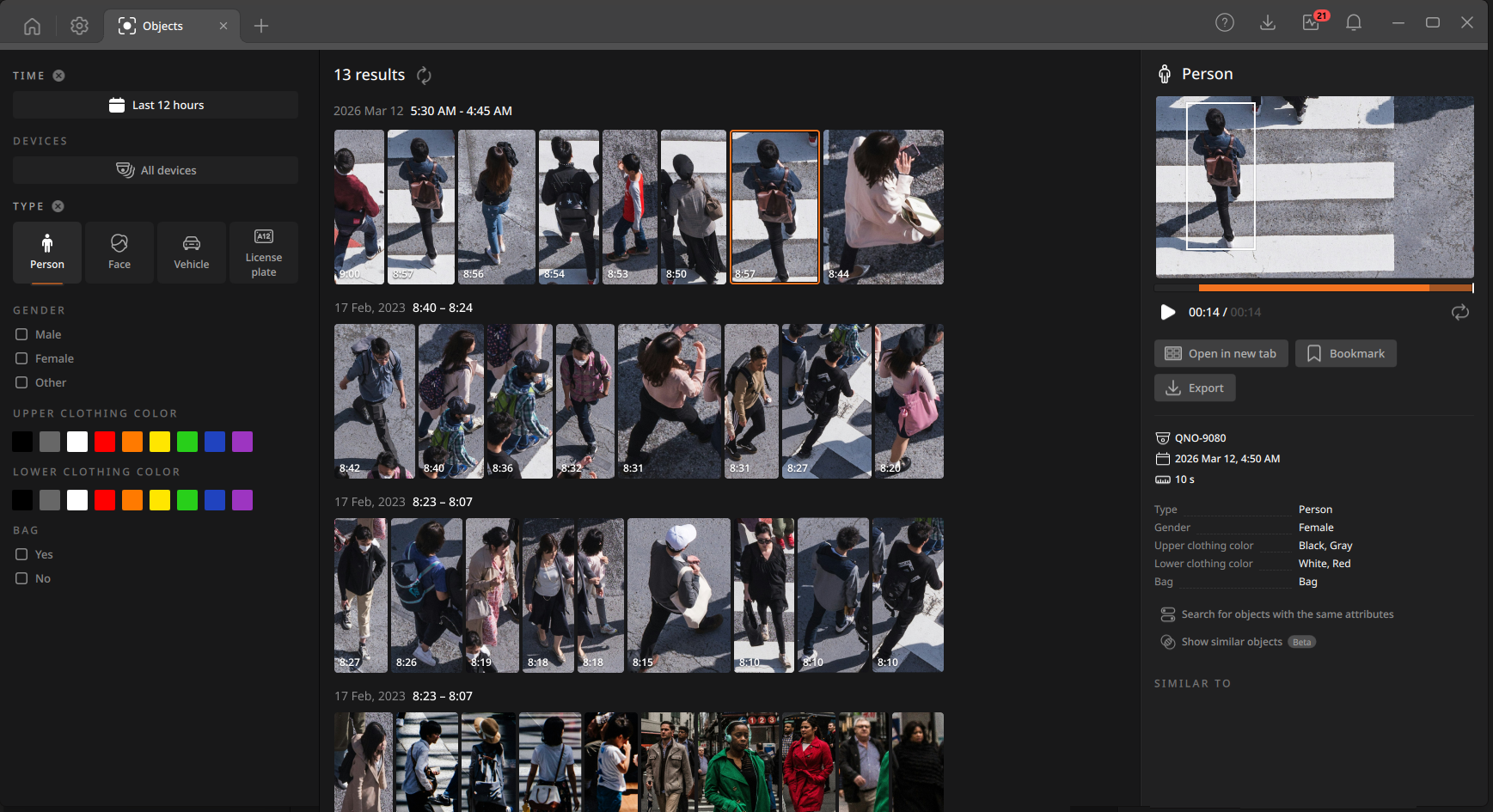
Object events occur when connected AI devices detect object event conditions such as person, face, vehicle, or license plate. You can search object event videos stored in BLAZE by date, device, and object type. You can also apply filters based on the selected object type to refine the search results. Searched event videos can be played and exported as video files.
To search for an object
- On the Home page, click Objects.
- Select the filters to use for the search.
- Time: Click the Time filter to open the date selection panel. Set the start and end date and time range for the event search, and then click
 .
.- Select Any time to search across the entire video storage period on the server.
- You can also select a predefined range based on the current time, such as Last 1 hour, 12h, 24h, or 7d.
- Devices: Click the Devices filter to open the list of devices that support semantic search. Select the device to search and click Select.
- Click All devices to select all cameras or devices configured for semantic search.
- Enter the device name in the search bar to quickly search.
- Because object event conditions can be detected only on AI-enabled devices, devices that are not configured for semantic search do not appear in the list. To display them, click
 and select Show devices without analytics. Devices that do not support semantic search are listed under Devices without analytics.
- Type: Select the object type to search for. Only one object type can be selected at a time. The available filters for each object type are as follows.
- Person: gender, upper clothing color, lower clothing color, bag
- Face: gender, age, mask, glasses
- Vehicle: vehicle type, color, brand, model
- License plate: number, country, state/province
Note: Vehicle brand, model, license plate number, country, and state/province can be searched only when using Hanwha AI cameras that support these features.
- Time: Click the Time filter to open the date selection panel. Set the start and end date and time range for the event search, and then click
- Event thumbnails that match the selected filters are displayed in the Results panel.
- When you select detailed filters for the selected object type, the filtered search results are displayed in the Results panel.
- Click an item in the Results panel to open the Event Details panel.
- In the Details panel, you can view detailed event information and play the video. You can also add bookmarks or export the video as a file.