
Signing in with your cloud account
Log in to BLAZE using a Hanwha Vision Cloud account.
To log in with your cloud account
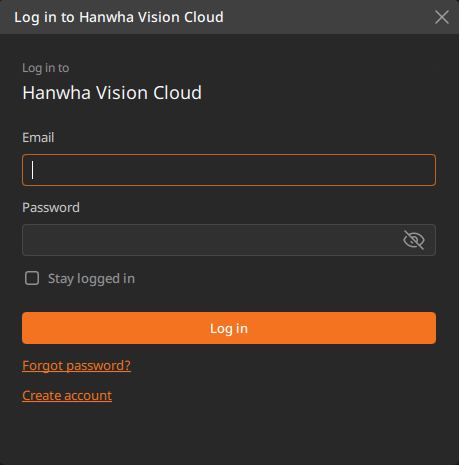
- Click Log in to Hanwha Vision Cloud on the login page.
- Enter your email address, then click Continue.
- If you select Remember me when logging in, you will be logged in automatically the next time you start the client.
- Enter your password, then click Log in.
- Click Forgot password to go to the password reset page. If your account is locked, you can unlock it yourself by resetting your password through this menu without having to contact technical support.
- Click Create account to create a cloud account.
Setting up two-factor authentication on Hanwha Cloud Portal
When using BLAZE with a cloud account, set up two-factor authentication (2FA) at login to enhance security. When 2FA is enabled, both a password and an authentication app code are required to log in.
Set up 2FA for cloud login in the Cloud Portal. Once enabled, an authentication code must be entered at every login.
To set up two-factor authentication on Cloud Portal
- On the Cloud Portal login screen, enter your email address and password, then click Login.
- In the Cloud Portal, click
 at the top right, then click Organization Settings.
 - Set the Enable 2FA toggle to On.
- Click Save at the top right.
- Click at the top right, then click Logout.
- On the Cloud Portal login screen, enter your email address and password, then click Login.
- When the 2FA setup screen appears, launch the authentication app and scan the QR code shown on screen.
- The 2FA setup screen appears only on the first login after enabling 2FA. Follow the instructions on the screen.
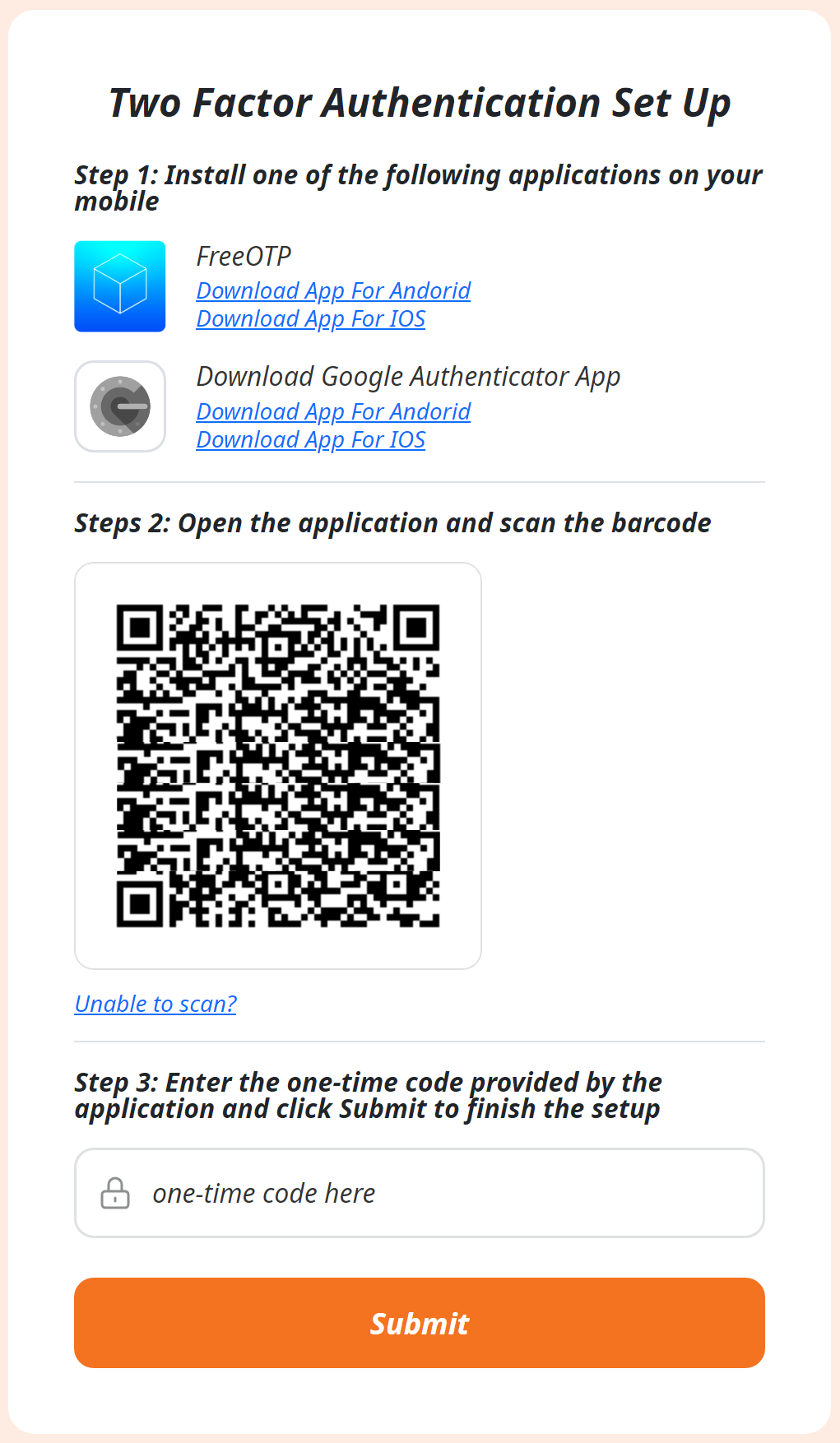
- The 2FA setup screen appears only on the first login after enabling 2FA. Follow the instructions on the screen.
- When authentication succeeds, the 2FA setup is complete.
Cloud connection errors
If you fail to log in to or connect to the cloud system, the following connection error messages and notifications may appear.
System access error
| Error type | Error message and notification | Cause and solution |
|---|---|---|
| No internet |
Failed to connect to {system name} Unable to connect to the cloud. Check your internet connection and try again. |
Check whether Wi-Fi is turned off or airplane mode is enabled on your mobile device, or whether your internet service provider (ISP) is experiencing an outage. |
| Server offline |
Failed to connect to {system name} This system is currently unavailable. Contact your administrator. |
Check whether the server is powered off, whether there is an issue with the on-site network, or whether the BLAZE service is running normally. |
| MQTT is not connected |
Failed to connect to {system name} Temporarily unable to connect due to a network issue (MQTT). Try again or use a different network. |
This can occur when a firewall is blocking required ports or the MQTT broker is restarting. It can also occur when the network connection is unstable or immediately after switching networks. |
| Failed to connect p2p |
Failed to connect to {system name} Temporarily unable to connect due to a network issue (P2P error). Try again or use a different network. |
This can occur when NAT or a firewall on the corporate network is blocking the connection, or when even the TURN relay connection fails. This error can also occur when the system is offline. |
| Cannot access to the system |
Failed to connect to {system name} You do not have access to this system. Contact your administrator. |
This can occur if the user is not registered in the system, permissions have been removed, the user logged in with an incorrect account, or the account is disabled. Contact your system administrator. |
Federation connection error
| Error type | Error message and notification |
|---|---|
| No internet |
Failed to connect to {organization name} Unable to connect to the cloud. Check your internet connection and try again. |