Viewing objects
Click an event item in the results panel to play the video, add a bookmark, or export the video as a file in the Details panel.
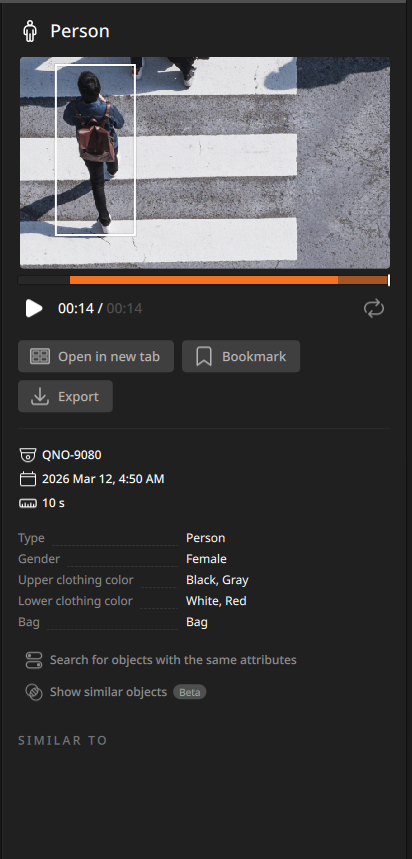
- Playback bar: Indicates the playback position of recorded video.
- The playback bar consists of two sections: a light green section and a dark green section. The light green section represents the recorded portion of the actual event video, while the dark green section represents the pre-recorded and post-recorded portions of the video. The pre-recorded and post-recorded portions are displayed for 2 seconds each.
 /
/ : Play or pause the video.
 : Repeat playback of the current video.
- Open in new tab: Play the video in a new tab. For more information on video playback, see Playing the video.
- Bookmark: Add the current video as a bookmark. Added bookmarks can be viewed in the Bookmarks tab. For more information on adding bookmarks, see Adding a bookmark.
- Export: Export the current video as a video file. The file is saved in the Videos folder of the path configured in Client settings. For more information on saving videos, see Exporting the video as a file.
- If the video to be saved is 5 seconds or shorter, the file may not be saved correctly.
- Details
- Device name: Displays the name of the device where the event occurred.
- Event time: Displays the time when the event occurred.
- Event duration: Displays the duration of the event from start to end.
- Object event information: Displays information about the selected object filters.
- Search for objects with the same attributes: Search for objects using all object attribute values from the video displayed in the Results panel.
- Show similar objects: Search for objects similar to the selected object. For more details, see Similarity search.
- Objects that support the similar object search feature display a
 icon in the lower-left corner of the thumbnail in the Results panel.
 - This feature is available only for cameras that support similarity search. Similarity search must be enabled on the camera. To enable it, go to Settings > Devices > Configuring objects settings.
- Objects that support the similar object search feature display a