
Exporting the video as a file
Play videos, search for events to view videos, and then export them as files on your PC. When saving videos as files, choose from video formats such as blzm, mkv, mp4, or an exe format that includes a viewer. For mkv or mp4 format, select the desired video stream to export; the stream information is automatically added to the file name.
Apply digital signatures to verify whether the video has been tampered with or altered, and set passwords to enhance security. When a password is set for a video file, the video plays only when the correct password is entered.
Note: Only users with Administrator role or video saving permission can export files.
To save the video as a file
- Select the video after using your preferred search method.
- Select the section to save in the Timeline panel and click
 in the shortcut menu.
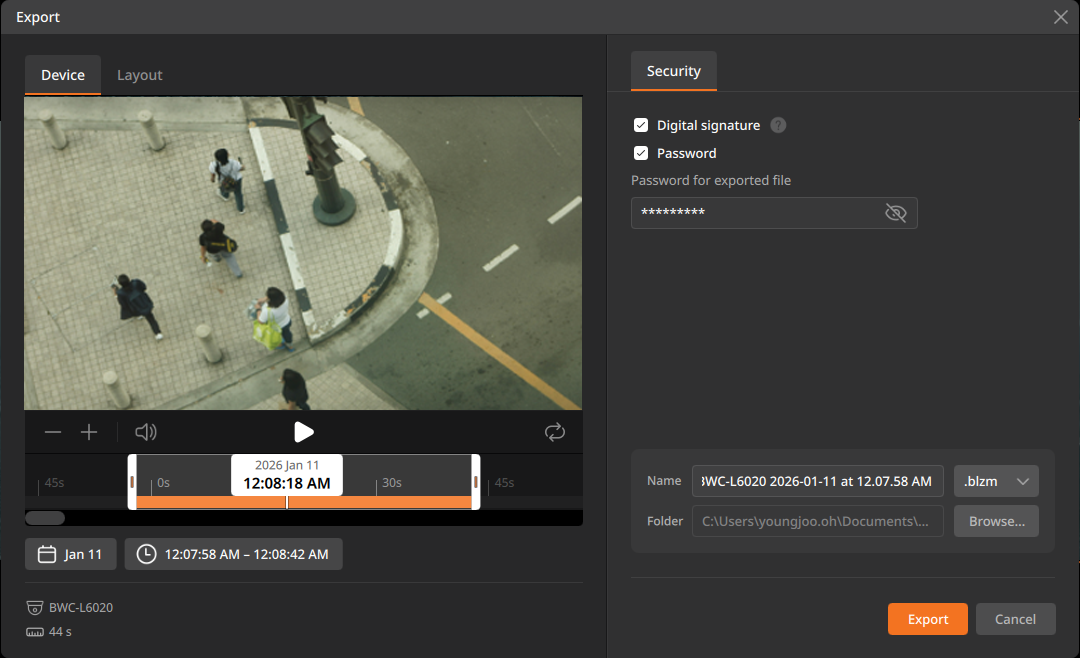
 - In the Export dialog, select the type of video to export.
- Devices: Save the video of the selected device.
- Layout: Save videos from multiple devices included in the selected layout.
- Select the section you want to export as a file in the Timeline panel.
- Play the video in the Scene panel.
- Move the bar to adjust the start and end of the section to be exported.
- Click the date or time at the bottom of the timeline to manually select a specific range.
- Click the Security tab to select digital signature and password.
- The options under the Security tab can only be configured when you select the .blzm or .exe format.
- Digital signature: Verify the file’s authenticity and ensure that the video has not been tampered with or altered.
- Password: Set a password to enter when playing the video.
 will be displayed on the file when you set a password.
- Click the Streaming tab to select the video stream to export.
- When you select the .mkv or .mp4 format, you can select the streams to export on the Streaming tab. Files are saved separately by the type of stream you select.
- Primary stream: Primary camera video stream. Typically has high resolution and quality.
- Secondary stream: Secondary camera video stream. Typically has low resolution and quality.
- When you select the .mkv or .mp4 format, you can select the streams to export on the Streaming tab. Files are saved separately by the type of stream you select.
- Enter the video file name and select the file format.
- Choose a file format from .blzm, .mkv, .mp4, and .exe.
- .blzm is a video format exclusive to BLAZE that allows for setting digital signatures and passwords.
- The .exe file includes a video viewer in the .blzm format, allowing for digital signatures and password protection.
- mkv and .mp4 are video formats that can be played in general video player programs.
- Check the folder to export the video to.
- Video files are saved in the Media folder located at the path set in Client settings. To change the storage folder, click Browse... and select a different folder.
- Click Export.
- When the file export starts, the progress status is displayed in
Export tray. Click to view the history of the file
export.
- The videos stored in the Videos folder can be viewed in Files panel.Note: When exporting video in .mkv and .mp4 formats, if the video codec or resolution changes, the files will be created separately.
- When the file export starts, the progress status is displayed in
Export tray. Click