Receiving and outputting audio during monitoring
During real-time monitoring, audio input from microphones connected to devices such as cameras or IP speakers can be received, and audio output can be delivered through speakers. When illegal littering is detected in the surveillance area, when someone is found smoking in a no-smoking zone, or when unauthorized individuals enter restricted areas, output audio through the speaker to take necessary actions. Additionally, for notifications or broadcasting needed in the surveillance area, such as gunshot detected, output audio through the speaker of the connected device.
Note:
- Only users with 2-way audio setting permission can receive or output audio.
- The audio output feature can only be used when a speaker and microphone are attached to the connected device.
- To output audio via the device's speakers, the Desktop client must have a microphone connected and set to send voice.
- The audio output feature needs to be configured in detail in the Audio tab in the Devices menu. For more information, see Audio settings.
To input audio through one device in the layout
- On the Home page, click View.
- Drag the desired device from the Devices or Layouts panel to a layout in Scene.
- Select the desired device in the layout to hear the sound.
- Set the incoming volume by selecting
 in the Timeline panel.
- Set the incoming volume by selecting
To output audio through one or multiple devices in a layout
- On the Home page, click View.
- Drag one or multiple desired devices from the Devices or Layouts panel to a layout in Scene.
- Select the desired device in the layout and click
 to output audio.
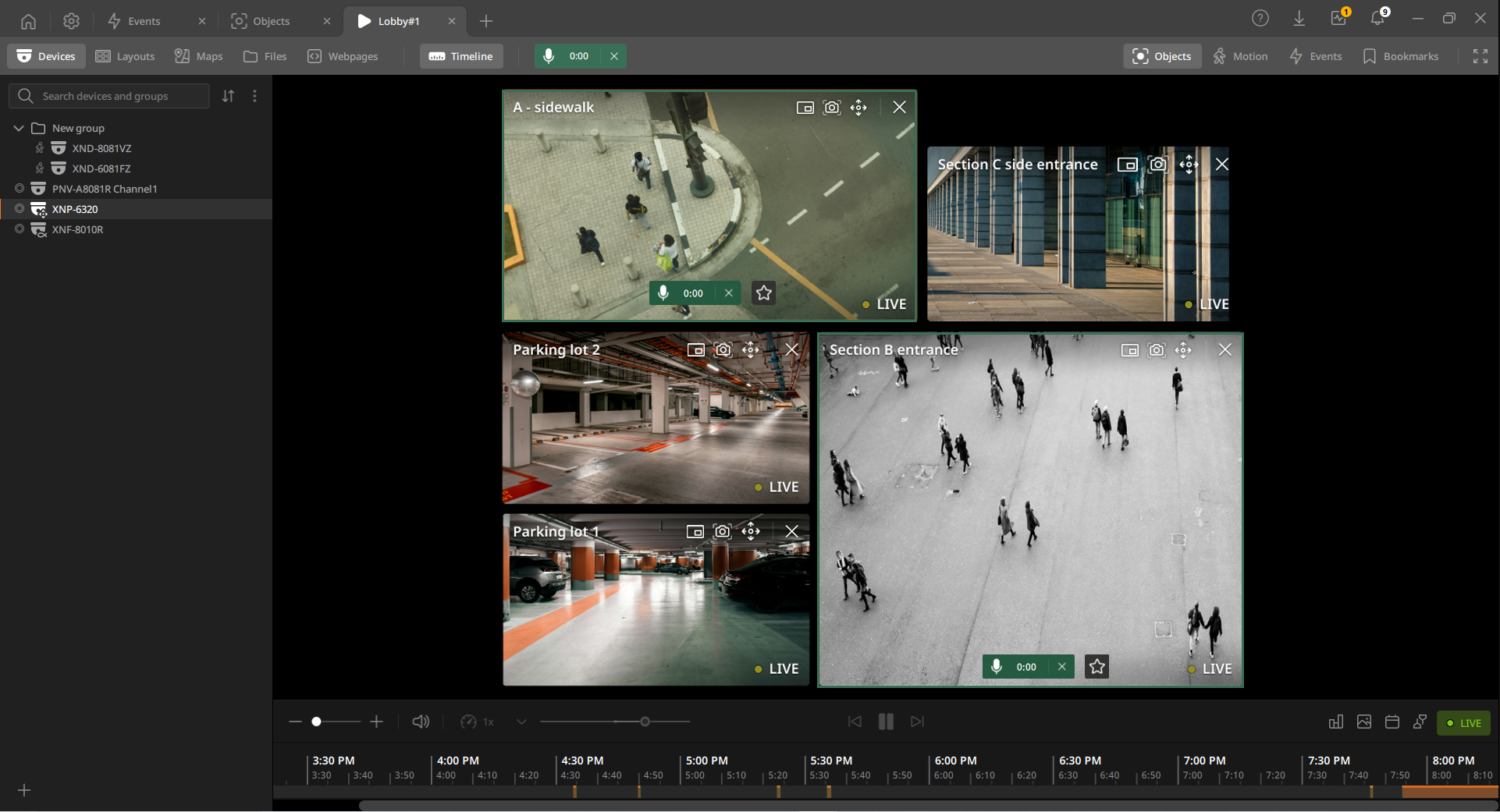
- Click Speak through this device on the item to output your voice through the speakers of the selected camera.
- Proceed to broadcast into the microphone.
- To turn off the audio of a specific device, Click
 on the device item in the layout.
To output audio through all devices in a layout
- On the Home page, click View.
- Drag one or multiple desired devices from the Devices or Layouts panel to a layout in Scene.
- Click on the View tab navigation bar.
- Select Speak through all devices on layout to output your voice through the speakers of all cameras added in the layout. The audio output will be triggered for all items in the layout, with and output duration displayed.
- Select Speak through all devices on layout to output your voice through the speakers of all cameras added in the layout. The audio output will be triggered for all items in the layout, with
- Proceed to broadcast into the microphone.
- Click in the View tab navigation bar to turn off the
audio of the entire devices in the layout. To turn off the audio of a specific
device, Click on the device item in the layout.