Monitoring video in real-time
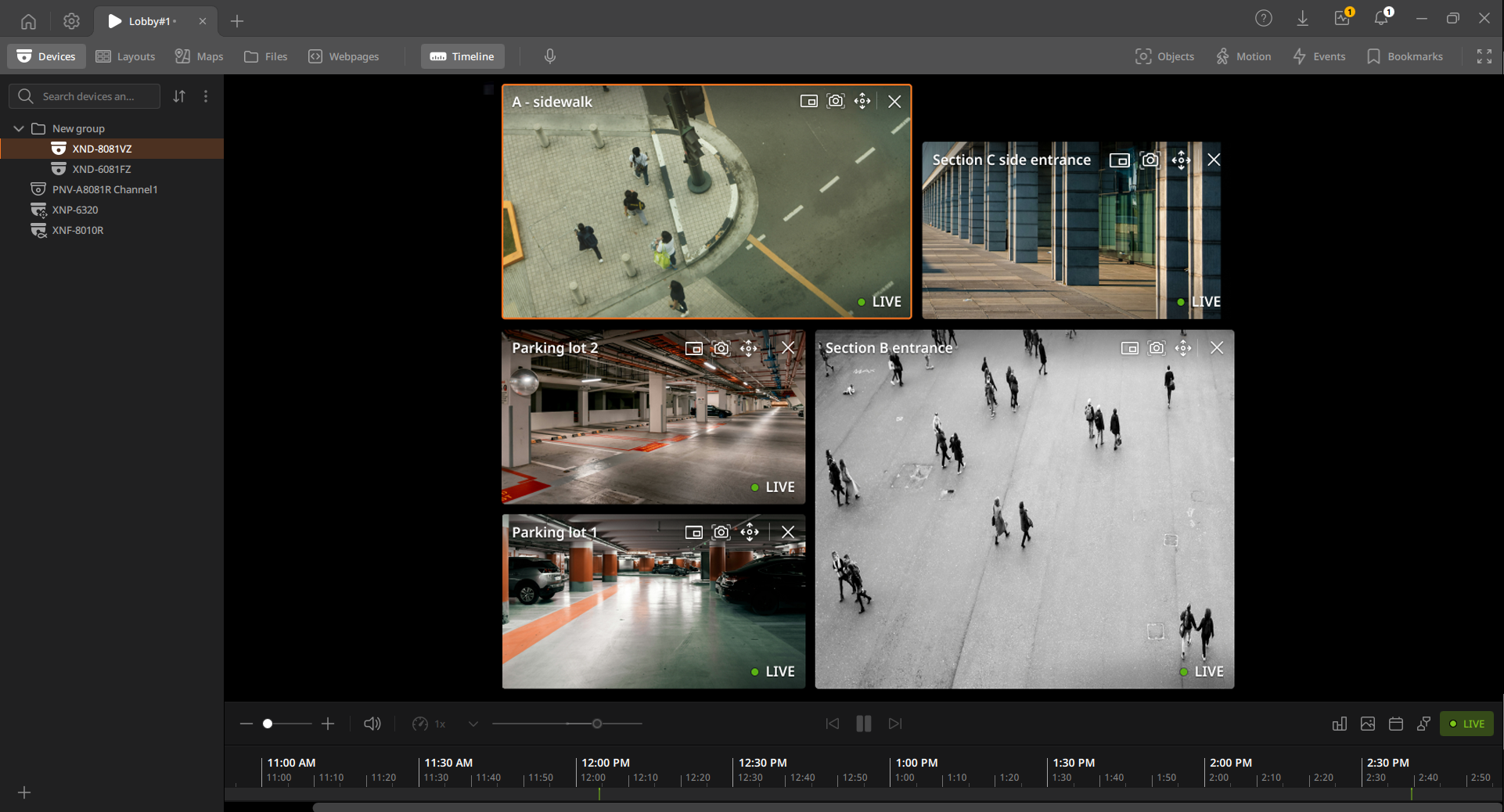
Monitor cameras and other devices connected to BLAZE in real-time.
To monitor video in real-time
- On the Home page, click View.
- Click
 button on the Tab bar to open the New
Layout tab.
button on the Tab bar to open the New
Layout tab.
- Click
- Click Devices or Layouts on the View tab navigation bar to open the Devices or Layouts panel. And drag the desired camera or layout to the Scene panel.
- In the Devices panel, select a device to add to a layout.
- In the Layouts panel, select a layout to add to a layout.
- In the Maps panel, select a map to add to a layout.
- In the Scene panel, the real-time video of the device is displayed.
- Right-click in the Scene panel to open a shortcut menu. The settings in
the shortcut menu are applied universally to all items currently being
monitored.
- Show info: Displays information, such as the video codec and resolution.
- Show metadata overlay: Displays metadata in the video.
- Always show name: Displays the device name in the video.
- Save layout: Save the current layout.
- Save layout as...: Save the current layout with a specific name.
- Video stream: Set the stream of the device added to a layout. Choose between Auto, Primary, and Secondary. The default is Auto.
- Control each item individually during real-time video monitoring. For more information on controlling tile video, see Controlling a video tile.
- Click the green section on the Timeline during real-time video monitoring to play back the recorded video of the selected device in the layout. For more information on playing video, see Playing the video
- Right-click in the Scene panel to open a shortcut menu. The settings in
the shortcut menu are applied universally to all items currently being
monitored.