
Playing back recorded videos
Search for and play recorded videos stored on the server, or save them as video files in the mobile client.
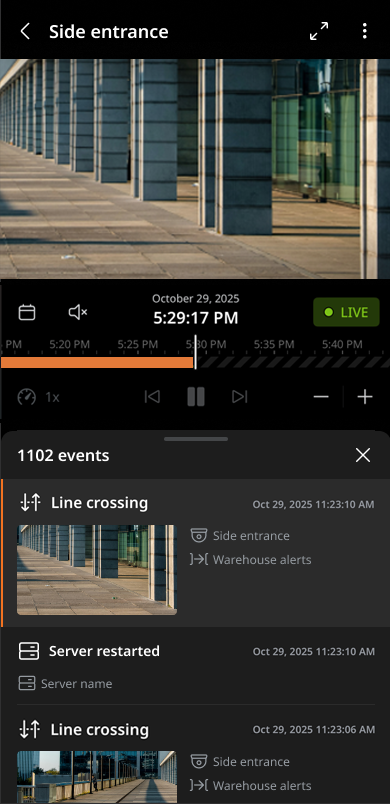
Note: To switch to LIVE mode while viewing videos in Playback mode, tap
LIVE above the timeline panel.
To access recorded videos
Tap and drag right or left to where you want to play or tap the video you want to play.
- In the timeline, tap and drag right or left to navigate to the desired playback point.
- Tap and drag right or left to display time information. Tap
Playback(
 ) to play the
section.
) to play the
section. - Tap the Fast forward icon
 to move forward quickly; tap the Rewind icon
  to move backward.
 - Tap the Plus
 to zoom out on the timeline; tap the Minus
  to zoom in.
- Tap and drag right or left to display time information. Tap
Playback(
Timeline search
Set a date range to play the video on the timeline.
- Tap
 to display a date selector above the timeline. Select the date and time where videos to be searched are recorded and tap OK.
Timeline colors
Identify the type of event or whether it has been bookmarked by viewing the color of the timeline.
| Color | Item | Description |
|---|---|---|
 |
No recordings | No recorded videos |
 |
Recordings - no event | No events in the recorded videos |
 |
Recordings - with event | There are events in the recorded videos |
 |
Events | There are events. |
 |
Objects | There are events where objects are detected |
 |
Motion | There are events where motion is detected |
 |
Bookmarks | There are bookmarked sections |
Fast playback
While playing video, increase or decrease the playback speed. The default playback speed is 1x, and the playback speed can be set to forward or reverse. Tap + or - to adjust the time display scale.
- Forward playback speeds: 1x. 2x, 4x, 6x, 8x
- Reverse playback speeds: -1x. -2x, -4x, -6x, -8x