
Monitoring videos in real time
Monitor devices connected to the server in real-time from the mobile client.
To monitor videos in real time
- Tap Devices at the bottom of the mobile client.
- Select the device to monitor from the list of devices.
- Tap the search icon at the right top and enter the device name to quickly find it.
- Tap
 to choose how to sort by.
- Name: Sorts the list of devices in order.
- Status (online first): Displays devices connected to the server at the top.
- Status (offline first): Displays devices that are disconnected from the server at the top.
- Monitor video from the device in real time.
 : View the device video in full screen.
- Tap in the upper-right corner while monitoring a device to access the shortcut menu.
- Add bookmark: Select a specific section of the video and add it as a bookmark.
- Export: Save the selected portion of the video as a file on the mobile device.
- Screenshot: Save a screenshot of the current video as an image on the mobile device.
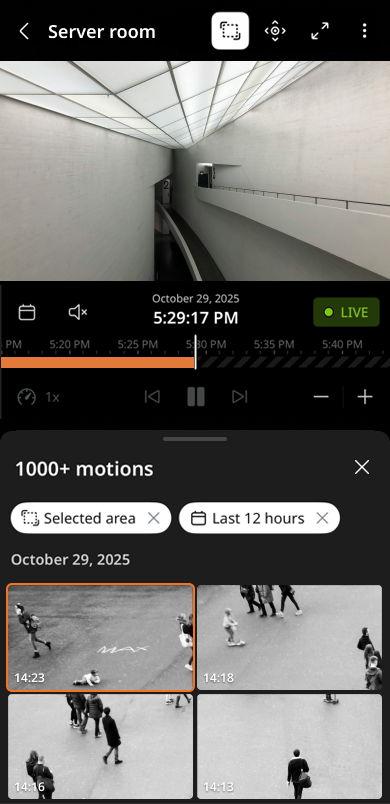
- Motion: Search recorded video from the currently selected device for motion events.
- Events: Search recorded video from the currently selected device by event.
- Objects: Search recorded video from the currently selected device for objects (person, face, vehicle, and license plate).
- Bookmarks: Search recorded video from the currently selected device by bookmark.
- Preferred video stream: Choose the device's video stream between Primary and Secondary.
- Display metadata: Choose how metadata is displayed on the video: Hide, Only when panel is open, or Always.
- Trigger button: Tap the button to remotely execute actions defined in a designated rule, such as sounding an alarm or starting recording. (The trigger button must be configured in the BLAZE desktop client.)
- The button is displayed only to mobile users whose role has permission to access the corresponding trigger rule.
- The feature is available in both local (directly connected) and cloud-connected mobile environments.
Using the tab panel
After selecting a device, tap  at the center of the screen to open the Tab panel for live monitoring or video playback. The menus available in the tab panel may vary depending on the device specifications.
at the center of the screen to open the Tab panel for live monitoring or video playback. The menus available in the tab panel may vary depending on the device specifications. - Motion: Search for motion video from the selected device. For more details, see Searching for motion.
- Objects: Search for object video from the selected device. For more details, see Searching for objects.
- The Objects tab is available only when an AI camera is connected.
- Events: Search for events from the selected device. For more details, see Searching for events.
- Bookmarks: Search for bookmarked video from the selected device. For more details, see Searching for bookmarks.
- Add bookmark: Select a specific section of the video and add it as a bookmark.
- Info: View detailed information about the selected device, such as the model, resolution, and FPS.
- PTZ: Control the PTZ functions of a PTZ camera.
- The PTZ tab is available only when a PTZ camera is connected.
- Export: Save the selected video as a file on your mobile device. For more details, see Saving video as a file.
- The Export tab is available only to users with permission to save video.
- Screenshot: Save a screenshot of the current video as an image on your mobile device.
- Tap Open photos to view saved screenshots on your mobile device. Images are saved in the Gallery app on Android and the Photos app on iOS.
- Image settings: Configure the focus, zoom, flip, and rotation of the video screen.
- The Image settings tab is displayed only for users who have permission to configure image settings.
- Talk: Output audio through the speaker.
- The Talk tab is displayed only when an intercom camera is connected.
- Open door: Open the entrance door.
- The Open door tab is displayed only when an intercom camera is connected.
- Trigger button: Tap the button to remotely execute actions defined in a designated rule, such as sounding an alarm or starting recording.
- Trigger buttons configured in the BLAZE desktop client are displayed.