
Viewing the list of devices
Click Settings > Devices to open the Device settings page, where the entire list of network devices added to the server is displayed. Select a device from the list to open the settings panel. The available settings vary depending on the selected device.
- In the search bar, enter a camera, server, or group name to quickly find devices.
 : Choose how to sort the device tree.
- Custom order: Sort the device list in the desired order.
- Alphabetical: Sort the device list in alphabetical order (A–Z).
- Last added: Sort the list by the most recently added.
- By IP address: Sorts the device list by IP address.
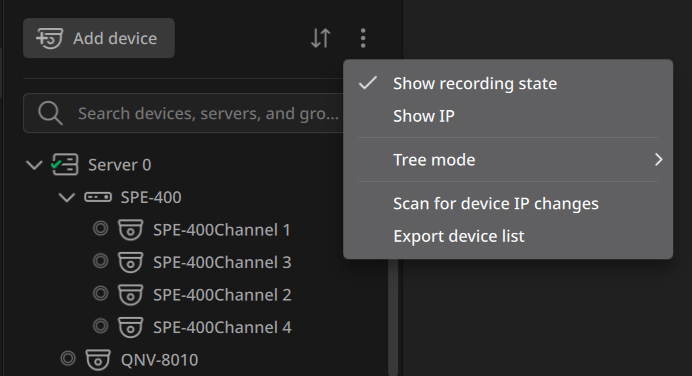
 : Set what to display in the device list.
 - Show recording state: Displays the recording state of all devices, such as Record always, Record motion/objects, By schedule, that appears next to the device name with an icon.
- Show IP: Displays the IP addresses of all devices in the list. When IP addresses are displayed, devices can be searched by IP address.
- Tree mode: Select how the list of devices is
displayed. Select Physical to display groups of
devices by server, or Logical to display
a simple list of devices.
- If you select >
Tree mode >
Logical and > Custom
order, drag a device to change its
position in the list. Physical mode does not support Custom
order.
- If you select
- Export device list: Export the registered device list as a CSV file.
- Scan for device IP changes: If a device's IP address has changed and the connection is lost, scans the network for the device based on its MAC address.
Note: In a system configured with two or more servers, devices can be moved to another server. Select the device to move, right-click it, and select Move to another server. Then choose the target server.
Exporting the device list
For maintenance and management, export the list of registered devices and their details to a CSV file.
Note: Only users with Administrator privileges can export the device list.
Note: The same device list can be downloaded by clicking  (Export to CSV) at the top-right of the Devices tab in Health monitoring.
(Export to CSV) at the top-right of the Devices tab in Health monitoring.To export the device list
- Click the menu icon at the top of the device list and select Export device list.
- In the Download device list CSV dialog, select one or more servers to extract the list from.
- Click Browse... next to Folder to choose the destination folder, then click Download.
File format and included information
- File format: CSV
- File name: Saved using client time in the format BLAZE_DeviceList_YYYY-MM-DD at HH.MM.SS AM/PM.csv.
- Sort order: Sorted the same as the physical order of the device tree (Server > Camera). (e.g., Server1's Camera1, Camera2, Server2's Camera3, Camera4)
- Included items: Vendor, device name, IP address, MAC address, serial number, model name, firmware version, server name, server IP, parent group (full path), license usage, recording mode, health status, bitrate, recording video, recording retention period, FPS information
Note:
- Deleted devices are not included in the list.
- When device information cannot be retrieved (e.g., due to failover), some information such as bitrate may be excluded.
Managing camera connections
If a registered camera's IP address changes and the connection is lost, the system attempts to reconnect automatically or a manual reconnect can be triggered. For reconnection, the system scans the network based on the camera's MAC address.
Automatic reconnect
When a camera disconnects, the system starts a network scan automatically.
- The system attempts reconnection up to 5 times at 10-minute intervals from the time of disconnection.
- If a new IP address is found, the system automatically restores the connection and updates the device settings.
- When the connection is restored, the live video stream is restored automatically and recording resumes if it was configured.
Manual reconnect
Manually scan the network to reconnect an offline device. Manual reconnect uses the same logic as automatic reconnect (MAC-based discovery, settings update, stream and recording restoration).
Note: The manual reconnect feature is available only to users with device settings permission.
To manually reconnect:
- In the device tree, right-click the offline camera and select Scan for device IP changes.