
Viewing events
In the Event log panel, click an event to play the video, set bookmarks, and save the video as a file in the Details panel.
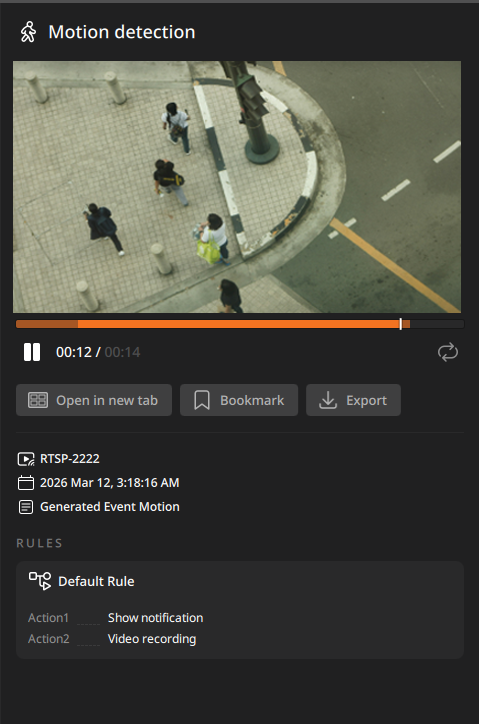
- Playback bar: Indicates the playback position of recorded videos.
- The playback bar consists of two sections: a light green section and a dark green section. The light green section represents footage associated with the event, while the dark green section represents the pre-recorded and post-recorded segments configured in the event action. Both segments are displayed for 2 seconds.
 /
/ : Play or pause the video.
 : Repeat video playback.
- Open in new tab: Play the event in new tab. For more information on video playback, see Playing the video.
- Bookmark: Bookmark the current video. View the bookmark in the Bookmarks tab. For more information on setting bookmarks, see Adding a bookmark.
- Export: Export the current video as a video file on your PC. The file will be saved in the Videos folder of the path you have set in Client settings. For more information on saving videos, see Exporting the video as a file.
- If the length of the video you are trying to save is less than 5 seconds, the file may not be saved properly.
- Device name: Displays the name of the device where the event occurred.
- Event time: Displays the time at which the event occurred.
- Rules: Displays the event rule name and the set event action.