
Searching for an event
Search for events stored in BLAZE by date, event trigger and action, and device. Once you find the desired event, play it back and save it as a video file.
Note:
- Motion detection and object detection events are not displayed in the event list by default. They are displayed in the list only when a rule that uses these events is configured.
To search for an event
- Click Events on the Home page.
- In the Events panel in the View tab, select the desired event and right-click to open the shortcut menu. Click Open in Events tab to navigate to the Events tab.
- In the Event log panel, select the filters to use to search for events.Note: The default setting for search filters is "Any" for each item.
- Search for the desired event by entering event information, such as event triggers, actions, source names, or keywords from event descriptions, in the search bar at the top of the Event log panel.
- Date and time: Click the date filter to display a date selector. Set the start/end date and time range to search for events in the calendar window and click
 .
.- Select Any time to set the search range from the start to the end of the videos stored on the server. Select a search range from Last 1 hour, 12h, 24h, or 7d based on the current time.
- Event trigger: When you click the Event trigger item, a list of event triggers to apply to the search will appear. Select the desired event trigger and click .
- For more information on Event trigger, see Setting an event trigger.
- Device: Click the device filter, and a list of devices to search
will appear. Select the device you want to search for videos and click
Select.
- Select All devices to select all devices connected to BLAZE.
- Quickly search by entering the device name in the search bar.
- Event action: When you click on the Event action item, a list of event actions to apply to the search will appear. Select the desired event action and click .
- For more information on Event action, see Event action settings.
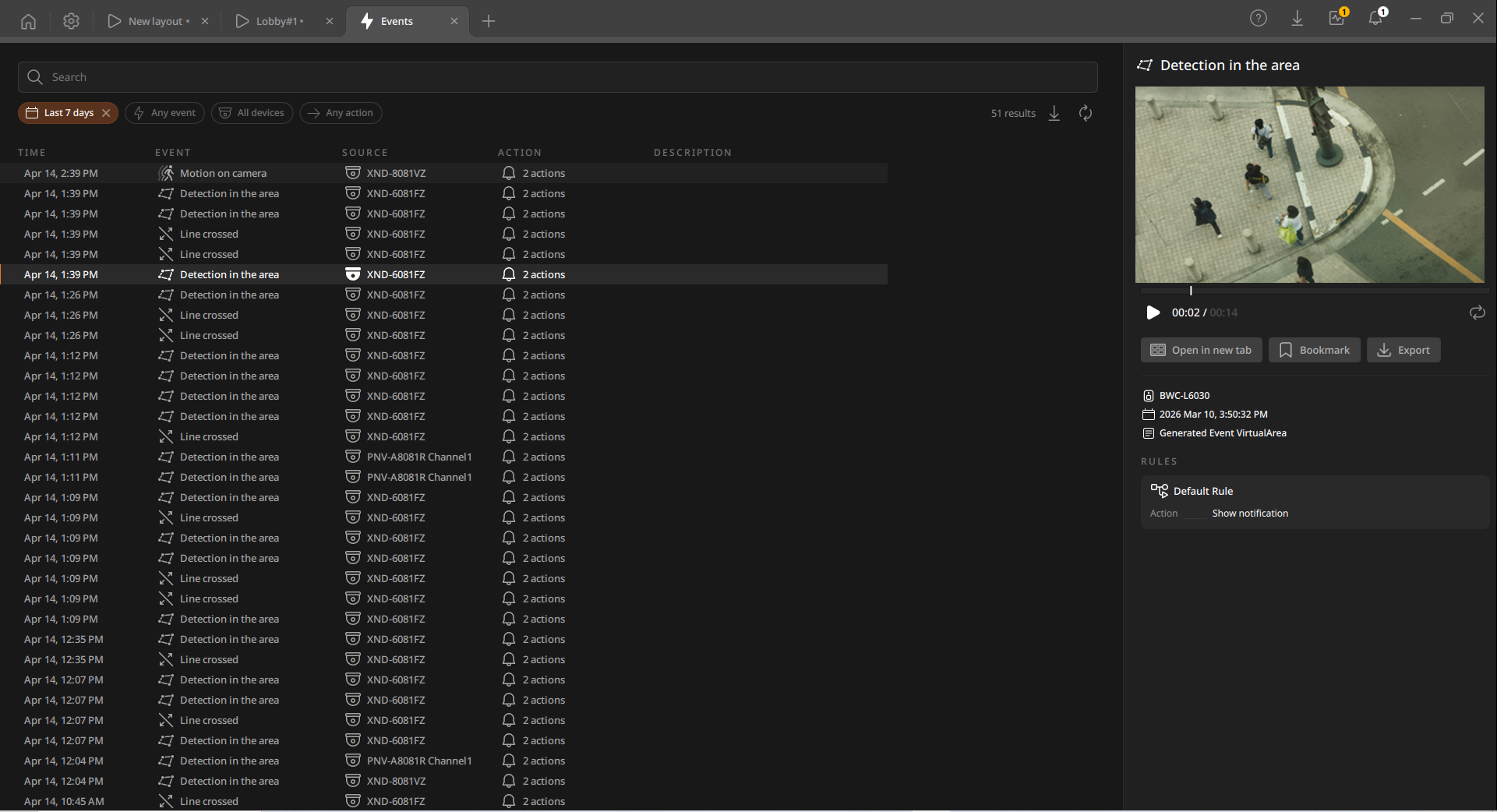
- Events with selected filters applied will be displayed in the search results.
- Time: Displays the time of occurrence of an event.
- Source: Displays the name of the device where the event occurred.
- Events: Displays the name of the event trigger.
- Description: Displays the explanation of the event.
- Rule: Displays the event rule.
- Action: Displays the name of the event action.
 : Save the search results for events as a CSV file. The CSV file will be stored in the Media folder at the path specified in the Client settings.
 : Refresh the event search results.
- Click the desired event in the panel, and the Event Details panel appears.
- In the Details panel, view the event details and play the video. Bookmark it or export it to a file as needed.
 Note:
Note:- The video will only play if there is a recorded video when the event occurs. Even if the video recording action is set up, the event will not be recorded when system events like "Device disconnected" occur.
- Clicking Play starts playback from the pre-recording time (2 seconds before the event).