
Setting an event trigger
When adding a rule card, select an event trigger card, such as Motion detection, Device disconnected, or Storage error. Add multiple key monitoring elements as event triggers to manage event rules.
Note: The available event triggers may vary depending on the types of devices connected to BLAZE.
Setting a device event trigger
Device event triggers occur or are detected by devices connected externally to BLAZE. Device event triggers include real-time monitoring elements, such as intrusion detection, that are primarily checked in the VMS.
Note: When selecting a trigger and devices for applying event triggers, if you click Select
devices > All devices, all devices
where the event trigger can be configured are selected. Devices that cannot
be configured with the event trigger are displayed as deactivated at the bottom of the device list.
- When you select a menu that appears by clicking
 in the device list, the devices where the event trigger cannot be set are displayed as disabled.
Note: WiseAI triggers, such as forklift detection, are additional features that need to be separately configured. If you remove a camera capable of using these events from BLAZE, the previously used event triggers are not deleted. Although the event triggers remain, they cannot be applied to new event rules since the connected devices have been removed, and will only be displayed during event searches or video playback.
- Person detection: An event occurs when a person is detected.
- Available only when an AI camera is connected.
- Face detection: An event occurs when a face is detected.
- Available only when an AI camera is connected.
- Vehicle detection: An event occurs when a vehicle is detected.
- Available only when an AI camera or a camera with the Wisenet Road AI app installed is connected.
- Select the type, color, brand, and model of the vehicle.
- License plate detection: An event occurs when a license plate is detected.
- Available only when an AI camera is connected.
- Set the numbers, country, and region to be detected on the license plate.
- Detection in the area: An event occurs when specific
motion is detected within the defined detection area of the camera. Selecting
this option allows you to configure detailed video analytics (VA)
settings.
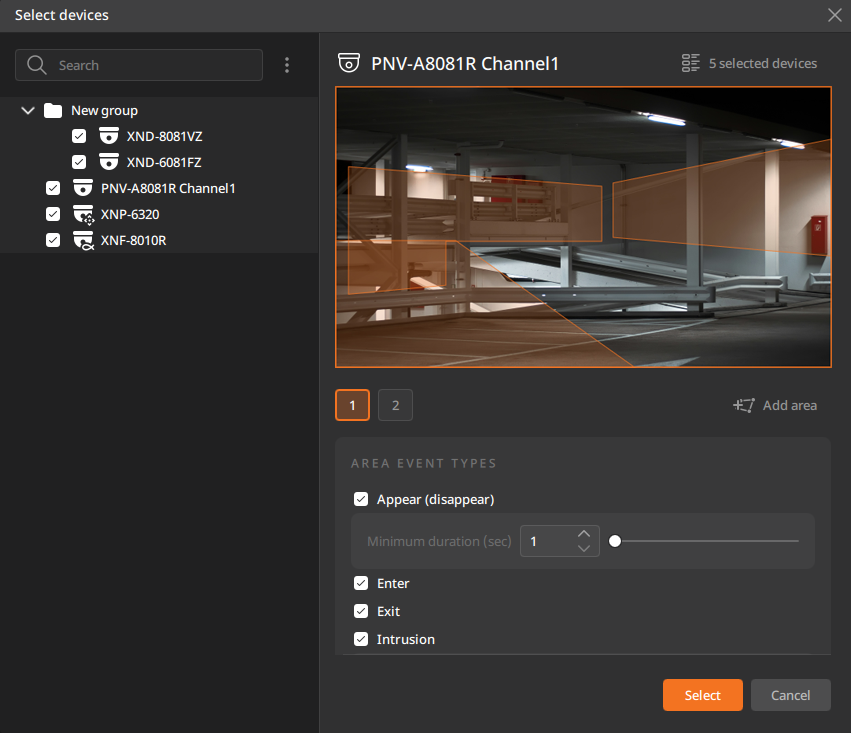 Note: Adding or modifying the detection area in BLAZE is reflected in the camera settings.
- Click Add area to add detection areas for each
camera. The number of detection areas that can be added may vary depending on
the camera's specifications.
- Click Delete area to delete the selected detection area.
- To set an excluding area, go to Settings > Devices, select the desired camera, and click the IVA or Objects tab. For more information, see Configuring objects settings.
- Appear (disappear): An event occurs if an object that was not present in the detection area stays within the area for a certain period, or if an object that was present in the area disappears for a certain duration. Set the minimum duration required for the event trigger to be detected.
- Enter: An event occurs when a moving object enters the set detection area from outside.
- Exit: An event occurs when a moving object exits from inside to outside the set detection area.
- Intrusion: An event occurs when a moving object is detected within the set detection area. Set the minimum duration required for the event trigger to be detected.
- Loiter: An event occurs when the movement of an object loitering within the set detection area is detected. Set the minimum duration required for the event trigger to be detected.
- Area object types: Select the types of objects to be
detected within the set detection area. An event occurs when the
selected objects are detected.
- Object detection can only be set with AI cameras; standard cameras will not display the Area object types option.
- Click Add area to add detection areas for each
camera. The number of detection areas that can be added may vary depending on
the camera's specifications.
- Line crossing: An event occurs when an object crosses the
set virtual line.
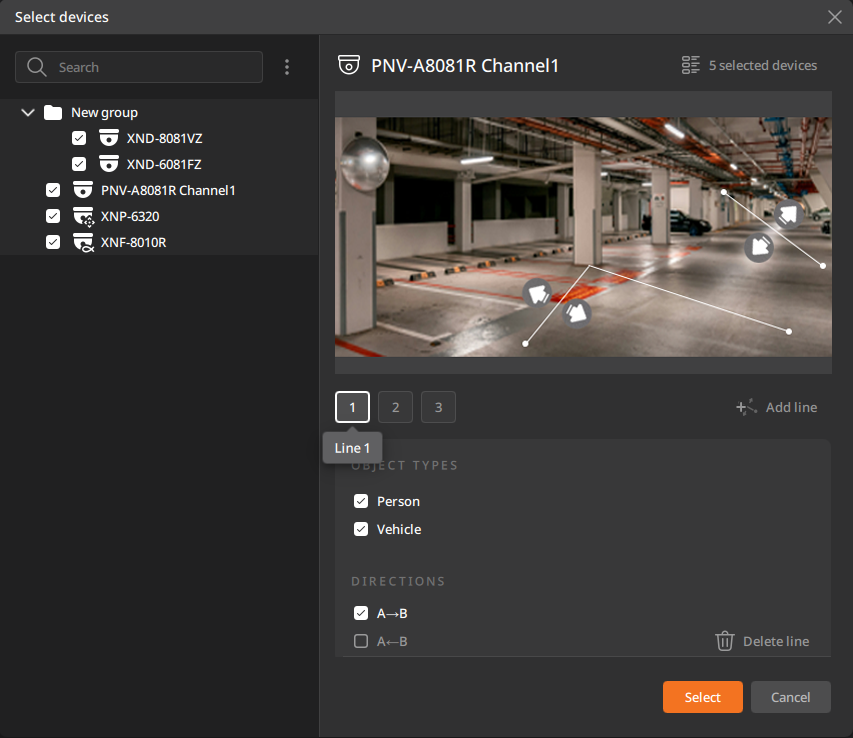 Note: The virtual line can be set on the camera, and any changes made on the camera are reflected in BLAZE. Similarly, adding or changing the virtual line in BLAZE is reflected in the camera settings.
- In Object types, select person or vehicle as the object crossing the
virtual line.
- Objects can only be set with AI cameras; the Object types option is not displayed on standard cameras.
- Set the virtual line on the selected camera. Click Add
line and drag in the preview to add a virtual line.
Select the crossing direction — A→B, B→A, or
both directions. The event trigger operates according to the set
direction.
- Click Delete line to remove the selected virtual line.
- The number of virtual lines that can be added may vary depending on the camera's specifications.
- In Object types, select person or vehicle as the object crossing the
virtual line.
- Motion detection: An event occurs when motion is detected within the detection area set for the camera.
- To add Motion detection as an event trigger, set a motion detection area. Go to Settings > Devices, select the desired camera, and click the Motion tab in the Settings panel. Enable Motion detection and set a detection area. For more information, see Configuring motion settings.
- Alarm input detection: An event occurs when the state of an alarm input connected to a device changes. Click Select inputs to choose the input that will trigger the event. The displayed name and icon correspond to the alarm input settings; see Alarm I/O settings for details.
- Temperature detection: An event occurs when the temperature exceeds the set threshold.
- To add Temperature detection as an event trigger, set a temperature detection area on the camera. Go to Settings
> Devices, select the desired camera, and click the Webpage tab in the Settings panel. In the camera webpage, click
 , then go to Analytics
> Temperature detection to add an area or modify the settings.
, then go to Analytics
> Temperature detection to add an area or modify the settings.
- To add Temperature detection as an event trigger, set a temperature detection area on the camera. Go to Settings
> Devices, select the desired camera, and click the Webpage tab in the Settings panel. In the camera webpage, click
- Shock detection: An event occurs when shock or vibration is detected on the camera or if there is a physical change in location.
- Fog detection: An event occurs when fog or cloudy conditions are detected in the camera feed.
- Defocus detection: An event occurs when the focus of the camera lens becomes blurred.
- Early fire detection: Analyzes flames, smoke, and temperature; an event occurs when flames or smoke are detected.
- Incoming call: An event occurs when a call is
received if an intercom is connected.
- If the Incoming call event trigger is set for multiple devices, the devices are recognized as a single event. Set a single event action for this event trigger.
- Audio detection: An event occurs when audio above the level set for the camera is detected.
- Sound classification: The type of detected sound is classified, and an event occurs.
- You can select the sound classification types to detect (Scream, Glass breaking, Car horn, etc.).
- Vessel detection: An event occurs when a vessel is detected. Vessels include small boats, fishing boats, and cargo ships.
- Face mask detection: An event occurs when the camera detects a person wearing or not wearing a face mask.
- Both face mask on and face mask off conditions are supported.
- Trigger button: Manually triggers a one-time event when needed. Once an icon is configured, the button appears on the monitoring screen. Clicking the icon triggers the event and executes the associated action.
- When the trigger button is configured, it appears on the monitoring screen and functions as an event trigger when clicked.
Setting a system event trigger
The system event trigger detects events or issues occurring within the BLAZE system. Events such as network disconnection or failure to store video on the server act as triggers. This trigger is used for monitoring system status.
Note: In BLAZE, a Health notifications rule can be created and applied for system monitoring. This event rule includes device connection and disconnection event triggers, with the Show notification action executed.
Note: System event triggers detect events occurring across all devices connected to BLAZE, so all devices are automatically selected by default. Deselect the auto-selected devices and select specific devices individually as needed.
- Device disconnected: An event occurs when the network connection between the server and device is lost or is functioning improperly.
- Device connected: An event occurs when a network connection between the server and device is reconnected after being disconnected.
- Server started: An event occurs when the server starts.
- Server stopped: An event occurs when the server stops running.
- Storage error: An event occurs when the server cannot store or transmit recorded video from the camera.