
Adding an event rule
Add and manage event rules in BLAZE. An event occurs when the system or a device detects a specific event trigger. Set event actions to notify users, ensuring that key monitoring events are tracked and necessary actions are taken.
When adding event rules, add multiple event triggers and actions, including duplicates of the same trigger or action. If multiple event triggers are set, the event occurs if any of the triggers are detected. For example, if you set two triggers, "Motion detection" and "Person detection," for Camera A, and set actions "Record video" and "Activate PTZ preset," if motion or a person is detected by Camera A, the event is recorded and the camera view shifts to the selected PTZ preset. When the system detects the motion trigger, the "Motion detection" event is logged, and when a person is detected, the "Person detection" event is logged.
- Only users with Administrator role can add event rules.
- Device events can be viewed in the Event log even without configured event rules. Event log is available in the Events tab.
- Multi-channel cameras can have event rules added for each channel.
- There is no limit to the number of event rules that can be added. However, if a large number of event rules are added to BLAZE, system performance may be degraded.
To add an event rule
- Click Settings > Rules.
- Click Add rule.
- Enter a new event rule in the text box at the top of the Rules page.
- In the WHEN section, select the desired event trigger card.
- Click Add event to add multiple event triggers. Configure detailed settings for devices or areas to which each added event applies.
- Click
 button to delete the added trigger.
- In the DO section, select the desired action card.
- Click Add action to add multiple event actions. Configure detailed settings for the devices or users to whom notifications will be sent for each added action.
- Click button to delete the added action.
- Click Apply.
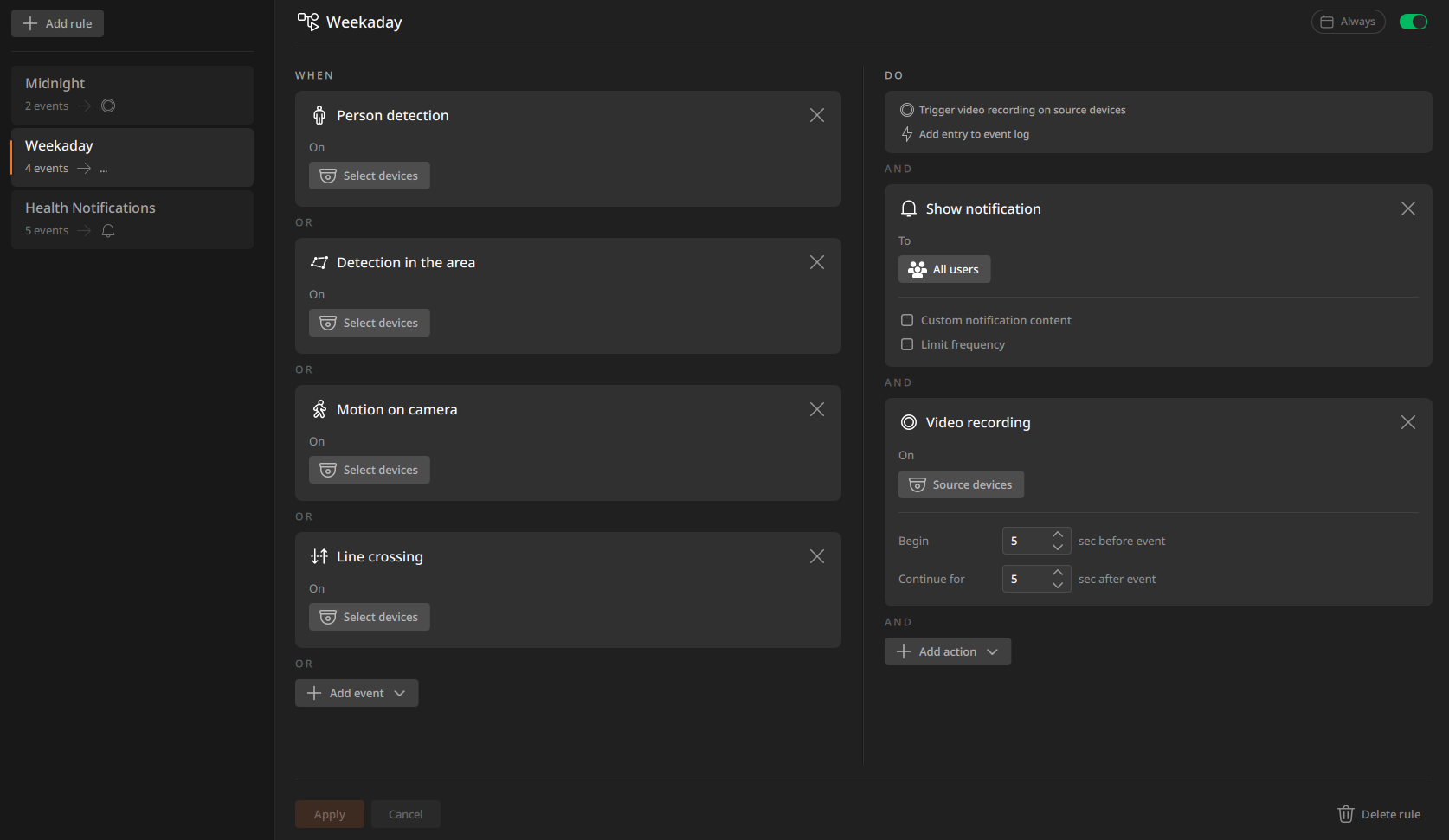
Enabling an event rule
To set a schedule for an event rule
Set the schedule for the added event rules. When an event rule is added, the schedule is set to Always by default. Configure the rule to be used only at specific times or on specific days, rather than always.
- In the Rules settings panel, click Always at the top.
- In the Manage event rules schedule dialog, click Add schedule.
- Enter the schedule name in the text box above the calendar.
- Drag the cells (desired days and times) to set a schedule.
- To select multiple cells, press and hold [Ctrl] and select multiple cells. The selected cells will be highlighted with a dark orange line.
- Select On or Off in Mode.
- Click Clear selection to reset the selected cells.
- Click OK.
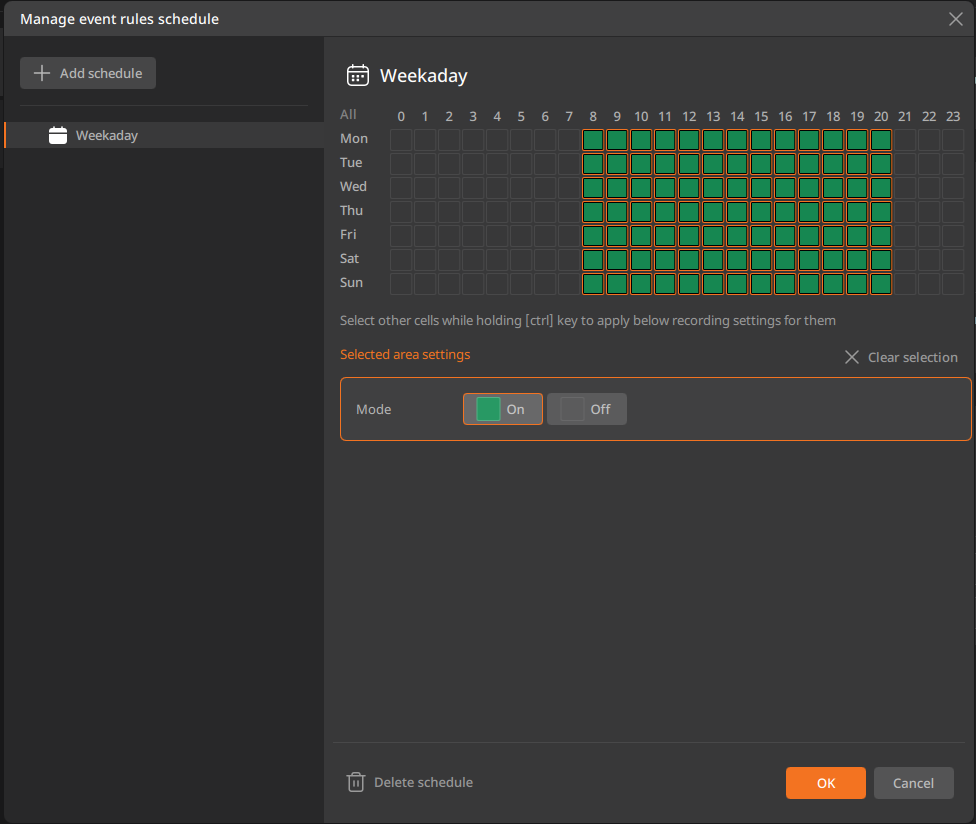
To edit a schedule for an event rule
Modify the schedule for an event rule to run.
To edit a schedule for an event rule- In the Rules page, click Always at the top or configured event rule schedule.
- In the Manage event rules schedule dialog, select the set schedule and modify it.
- After completing the modifications, click OK.
To delete a schedule for an event rule
Delete a schedule for an event rule to run.
- In the Rules page, click Always at the top or configured event rule schedule.
- In the Manage event rules schedule dialog, select the event rule schedule you want to delete and click Delete schedule.
- After completing the modifications, click OK.