
Monitoring a device
Check information for devices connected to the BLAZE server, including the file size and duration of stored videos per device.
To view monitoring information of a device
- On the Home page, click Health monitoring.
- In the Health monitoring tab, perform one of the following depending on the system configuration:
- Single-server system: Click System dashboard, then click the Devices tab.
- Multi-server system (all servers): In the left panel, click Devices. The device list for all servers is displayed.
- Multi-server system (per server): In the left panel, select the desired server from the Servers list, then click the Devices tab.
- Review the device list and detailed information.
- To quickly find a device, enter a search term in the search bar at the top of the list.
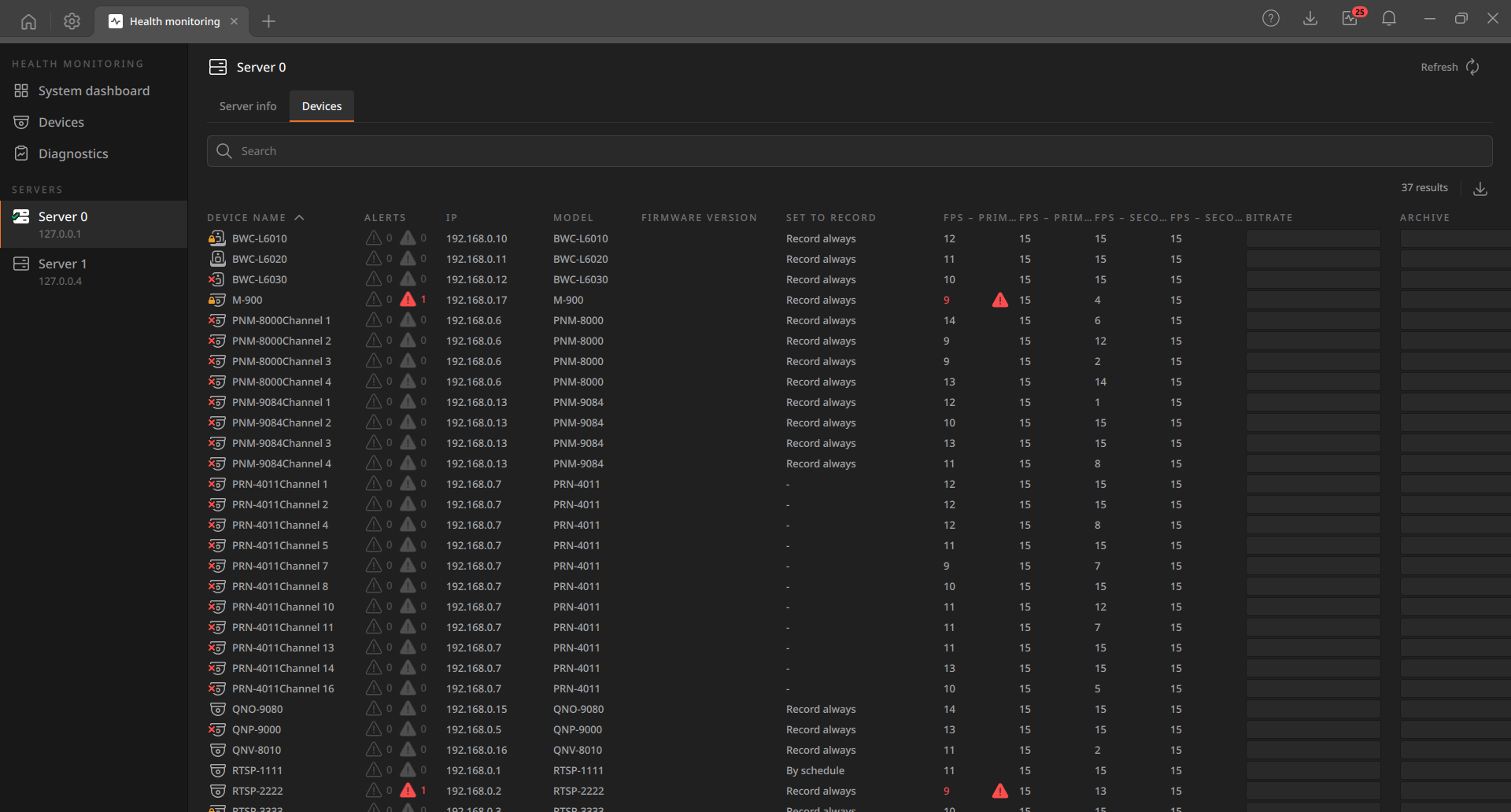
Device information
View information for devices connected to the BLAZE server, such as cameras and IP speakers. Click Refresh at the top to update the data.
- Device name: The name assigned to the device.
- Alerts: The types and number of alerts generated by the device.
- Server: The server the device is connected to.
- IP: The IP address of the device.
- Model: The model name of the device.
- Firmware version: The firmware version installed on the device.
- Set to record: The recording mode configured for the device.
- For more information, see Configuring recording settings.
- FPS - Primary (Target): The target frame rate configured for the primary stream.
- FPS - Primary (In): The actual incoming frame rate of the primary stream.
- FPS - Secondary (Target): The target frame rate configured for the secondary stream.
- FPS - Secondary (In): The actual incoming frame rate of the secondary stream.
- Bitrate: The average bitrate of the video stream.
- Archive: The storage capacity used by recorded videos per device.
- Archive retention: The total duration of recorded videos stored per device.
Device ping test
You can run a ping test on a registered device to check the network connection status between the server and the device.
Note: A ping test can only be performed on one device at a time.
Running a ping test
- In the device list of the Health monitoring tab, right-click the device to test, then
select Ping from the shortcut menu.
- You can also run the test from the following locations by right-clicking the desired device
and selecting Ping from the shortcut menu.
- Settings > Devices > device list
- View > Devices > device list
- The device-related alert card in the Health monitoring Alert panel
- You can also run the test from the following locations by right-clicking the desired device
and selecting Ping from the shortcut menu.
- You can check the test results in the Ping test window.
- After the test is completed or stopped, click Retry to run the ping test again on the same device IP.
Exporting the device list
Administrators can export the registered device list to a CSV file for maintenance and management purposes.
The exported file includes device name, IP address, MAC address, model name, firmware version, connected server, group path, license usage, recording mode, health status, FPS, and bitrate. During certain conditions such as failover, some fields (e.g., bitrate) may be excluded.
Note: Only users with the Administrator or Super administrator role can export the device list.
- Click
 (Export as CSV) at the top-right.
 - When the file save dialog appears, choose the save location and click Save.
- The default filename follows the format BLAZE_DeviceList_YYYY-MM-DD at HH.MM.SS AM.csv based on the current time of the client PC.