
Monitoring a server
Monitor CPU usage, storage space, and other details for the BLAZE server.
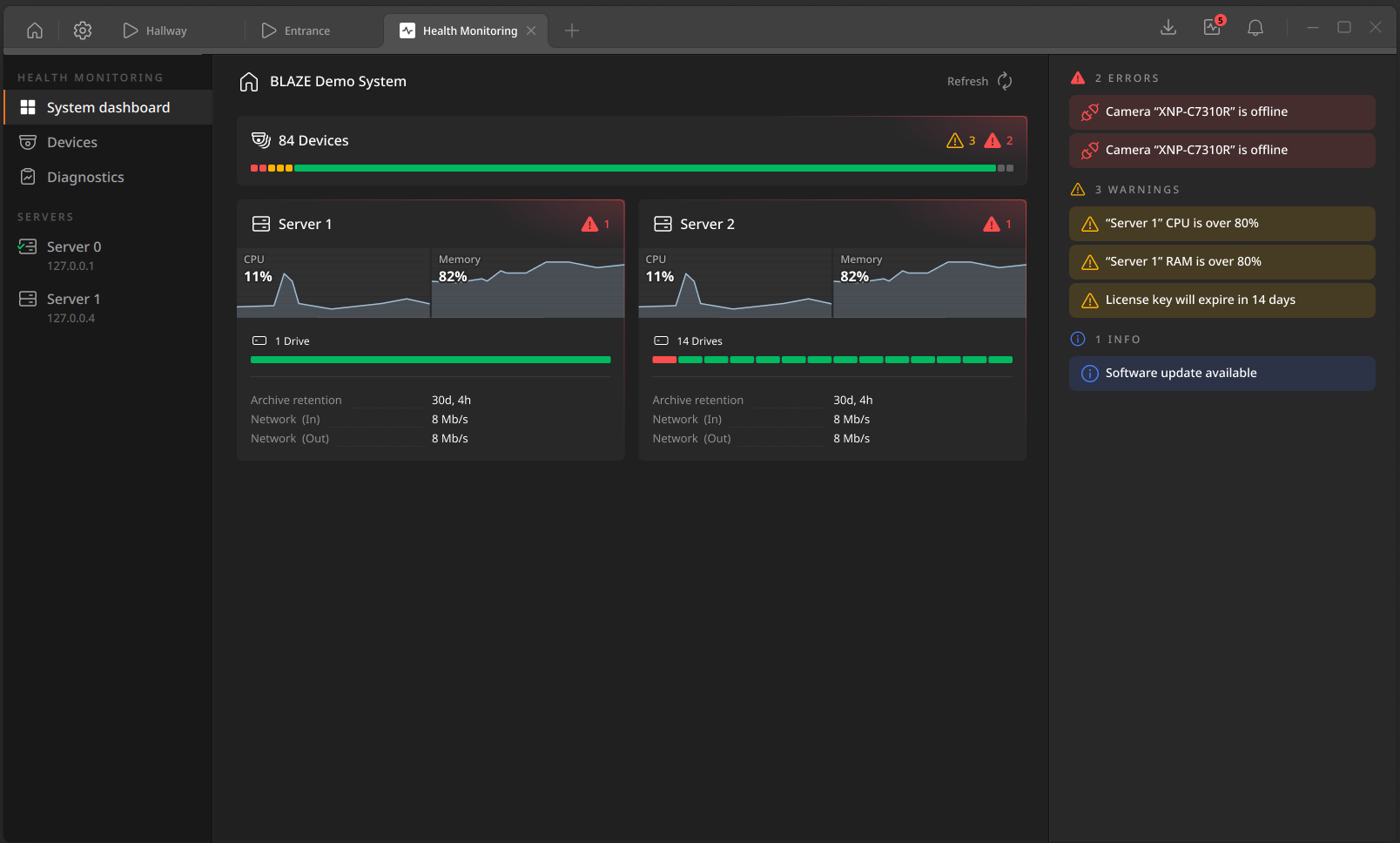
To view server monitoring information
- On the Home page, click Health monitoring.
- Select a server from the server list on the left.
- Status icon appears at the top of each card.
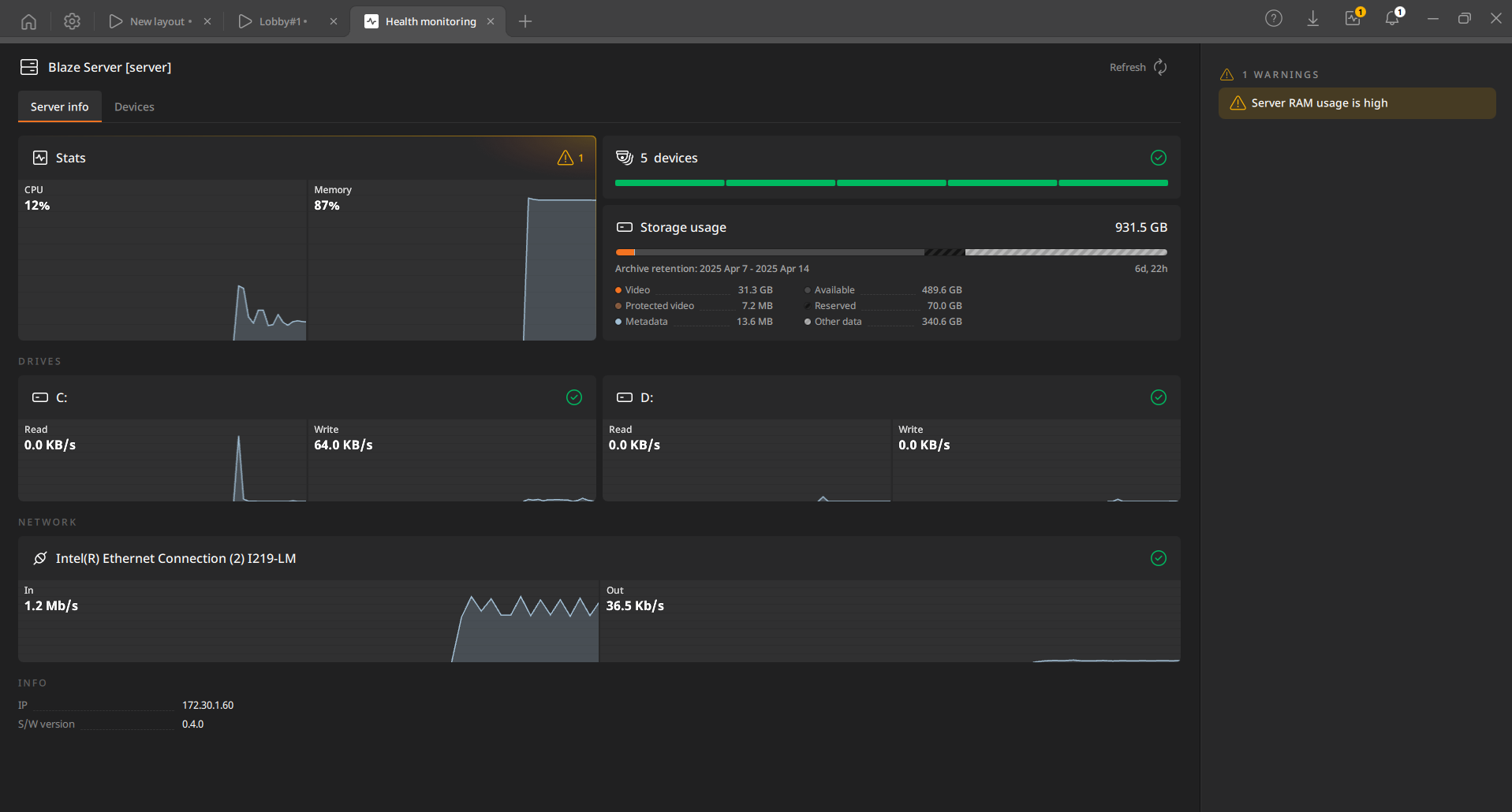
Server information
View detailed information for the BLAZE server. Click Refresh at the top to update the data.
- Stats: CPU and memory usage of the server.
- Devices: The number of devices connected to the server and their status (normal, warning, or error).
- Storage usage: A chart showing storage utilization on the server, including recorded videos, protected videos, metadata, and more.
- Also shows the archive retention period (days/hours of recordings available for playback) across all devices in the system.
- Drives: Read/write speeds for each drive on the PC where the server is installed.
- Network: Network traffic for the system.
- In: Total incoming traffic from camera video and metadata. Out: Total video traffic sent from the server to the client.
- Info: The IP address and software version of the server.
- System status: Real-time monitoring results for server and device issues.
To view devices per server
View the device list for a specific server rather than the entire system.
- Select the desired server from the list on the left.
- On the Server dashboard, click the Devices tab.
To view devices across all servers, click the Devices tab in the left menu.