
Adding a server
To use BLAZE, first install the BLAZE server on the PC and then connect to the server with the client. The PC with the installed server is set as a local server, and video or data from devices connected to the server is stored on the PC's storage disk. Once connected, the client enables playback of recorded camera video and access to various settings, such as event rules, user permissions, and more. Up to 50 servers can be added to the client by searching by the server's IP address and port.
Note:
- Only users with the Super administrator or Administrator role can add servers.
- For more information about server installation and initial configuration, see Server installation.
To add a server
- Click Settings > Servers.
- On the Servers settings page, click Add server.
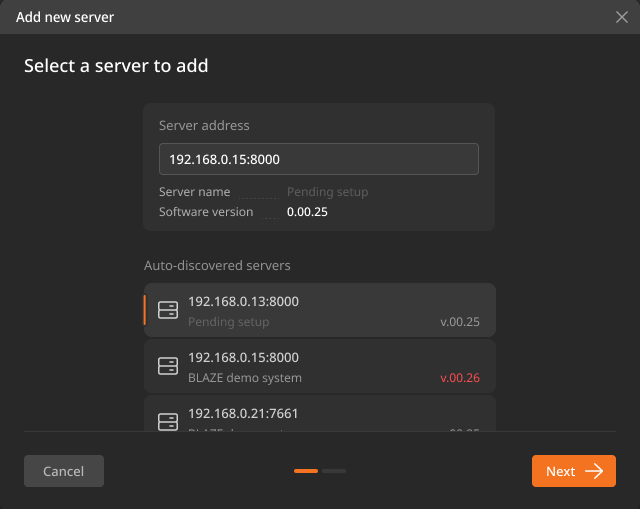
- In the Add server dialog box, enter the IP address and port of the server to add.
- Only IPv4 addresses are supported. Enter the server IP address and port in the format 192.168.0.1:8000.
- Servers on the same network as the client are automatically discovered and displayed.
- If the client and server are on different networks, enter the IP address and port to search for the server.
- Select the server to add from the search results, and click Next →.
- Enter the Super administrator's password, and then click Add server.
- In the confirmation dialog box, click Finish.
- To continue adding servers, click Add another server.