
Running the server
The server automatically starts when the PC is turned on and shuts down when the PC is turned off. Manually start or stop the server independently of the PC's operation.
Starting the server
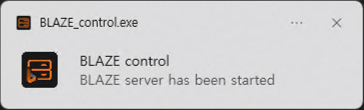
When the PC starts, the server automatically launches. Once the server is running, an information message will be displayed on the Windows taskbar.
To restart the server
- Click the up (
 ) arrow to show hidden icons on the Windows OS taskbar.
 - Select
 and right-click it.
 - Click Start server in the shortcut menu.
Stopping the server
Stop the operation while the server is running.
To stop the server
- Click the up () arrow to show hidden icons on the Windows OS taskbar.
- Select and right-click it.
- Click Stop server in the shortcut menu.
Quitting the server
If a server needs to be restarted, shut down the running server.
To quit the server
- Click the up () arrow to show hidden icons on the Windows OS taskbar.
- Select and right-click it.
- Click Quit in the shortcut menu.
Changing server ports
- Only users with super admin or admin privileges can change the server IP or ports.
- Changing the IP and port of one server does not interrupt system operation — all other servers in the BLAZE system automatically recognize the change and maintain their connections.
- Be sure to check for conflicts with other services that use the existing ports.
- After changing ports, bookmarked webpages may become inaccessible, so notify users as needed.
The method for changing the IP and port differs between BLAZE Desktop and BLAZE Appliance.
BLAZE Desktop
For BLAZE Desktop, change the port through the system tray when a port conflict occurs (for example: port 8000 is already in use).
To change server ports
- Click the up () arrow to show hidden icons on the Windows OS taskbar.
- Select and right-click it.
- Click Change ports in the shortcut menu.
- In the Server port settings window, enter the port numbers and click Set port.
BLAZE Appliance
On appliance systems, change the IP address and port through the server settings menu.
- Click Settings > Servers.
- Select the server to modify, then edit the IP address or port number.
- When you enter an IP address, the subnet mask and gateway are filled in automatically for convenience.
- Subnet mask: Automatically set based on the class of the entered IP address (for example: 255.0.0.0).
- Gateway: When IP address a.b.c.d is entered, the gateway is automatically set to a.b.c.1.