
Advanced features
Perform simultaneous broadcasts to multiple speakers or locate intercom cameras that have received calls on the map image.
Simultaneous broadcasting
Transmit audio simultaneously to speakers at multiple locations.
Remotely broadcast at the same time through the speakers of multiple intercom cameras grouped in the same layout. When audio is input through the PC microphone where BLAZE is installed, it is output through the intercom cameras' speakers.
- On the Home page, click View.
- In the View tab's navigation bar, click
 (Layouts).
 - Double-click the desired layout that has devices registered in the Layout panel, or drag the layout to the Screen panel to load it.
- In the navigation bar, click
 (Devices), then in the
Devices panel select the desired device and drag it to the Screen panel to add the device to the current layout.
(Devices), then in the
Devices panel select the desired device and drag it to the Screen panel to add the device to the current layout. - For information on creating a new layout, see Adding a layout.
- In the navigation bar, click
- In the navigation bar, click
 (Speak through all devices on layout).
 - The audio transmission time is displayed. When the audio transmission is
finished, click
 to stop.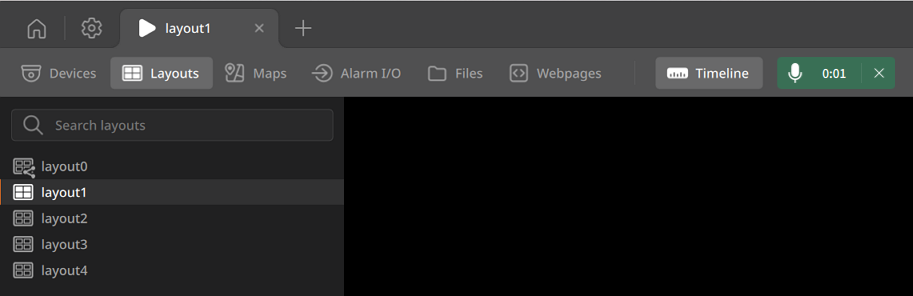
Note: To broadcast sound to a single intercom device only, in the live view of that intercom click (Speak through this device) and transmit audio through the individual intercom camera's speaker.
(Speak through this device) and transmit audio through the individual intercom camera's speaker. Managing intercom devices on the map
View and manage the location of intercoms on the map image.
For information on adding a map, see Creating a map.
- On the Home page, click View.
- In the View tab's navigation bar, click
 (Map).
 - In the Map panel list, double-click the desired map or drag the map to the Screen panel to load it.
- In the navigation bar click the Devices panel, then drag the intercom you want to place from the device list to the desired position on the map background image.
- The map displays the following:
- Intercom locations are easily identified on the map background image.
- If a visitor attempts to call an intercom, the icon for the called intercom will blink on the map image. Note: Icon blinking occurs only if Show motion detection flash is selected in map edit mode.
- Clicking an intercom device icon opens the Details panel where the intercom's live video is displayed.