
Adding a device with manual scan
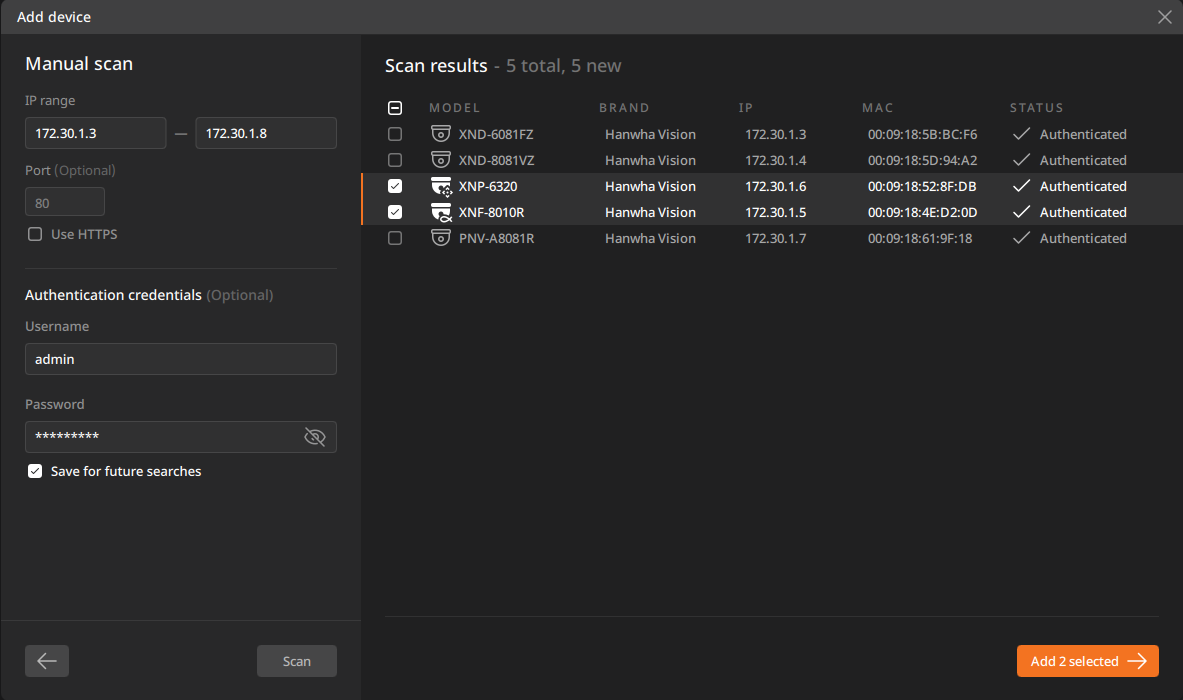
If devices, including cameras, connected to your network aren't automatically discovered, add multiple devices to the selected server at once by entering the IP range of the desired devices. Devices found within the entered IP range will appear in the scan results. For example, if you enter 192.168.1.10 as the starting IP and 192.168.1.20 as the ending IP, all devices within that range will appear in the list.
Select devices in the list and add them to the server using the same steps for auto scan. For more information, see Adding a device with auto scan.
Note:
- Only IPv4 format addresses can be entered. Enter IP addresses as shown in the following example:
- e.g., Starting IP 192.168.0.2 – Ending IP 192.168.0.254
- The starting IP and ending IP addresses must be in the same subnet range, up to the 192.168.0 range. The last octet is limited to 0–255.
- The default port is 80. Change the port only if needed.
- If the device is on a different network than the server, adding it may be restricted. To register a device on a different network, use the Adding a device with auto scan feature.
To add a device with manual scan
- Click Settings > Devices.
- Click Add device > Manual scan.
- In the Add device dialog, under Search with and add to, select a server to add the device to, then enter the starting and ending IP addresses.
- The server list is only displayed when there are multiple connected servers. If there is only one connected server, the server list is not displayed.
- To register the device using the HTTPS protocol for enhanced security, select Use HTTPS.
- If necessary, under Authentication credentials, enter the device's username and password, then click Scan.
- Select the desired device from the list of scan results and click Add N selected.
- Click Finish.
Setting an IP address for an initialized device
For an initialized device, set a static IP address to add it to the server. Failure to set a static IP may cause IP conflicts.
To set an IP address for an initialized device
- In the list of scan results, select a device with the status "Needs password".
- In the Add device dialog, set the password, then click Next.
- Select Set IP address > Advanced IP settings to enter detailed information.
- Enter the subnet mask, gateway, DNS, etc., then click Apply IP settings.