
Controlling the PTZ camera
Control the PTZ camera during real-time monitoring.
To control the PTZ camera
- Tap Devices at the bottom.
- Select the device to monitor from the list of devices.
- Tap the PTZ control icon
 next to the camera name. Then the PTZ control panel appears at the bottom.
 - Tap the control buttons (
 ,
,  ,
,  ,
,  ) to control the PTZ camera.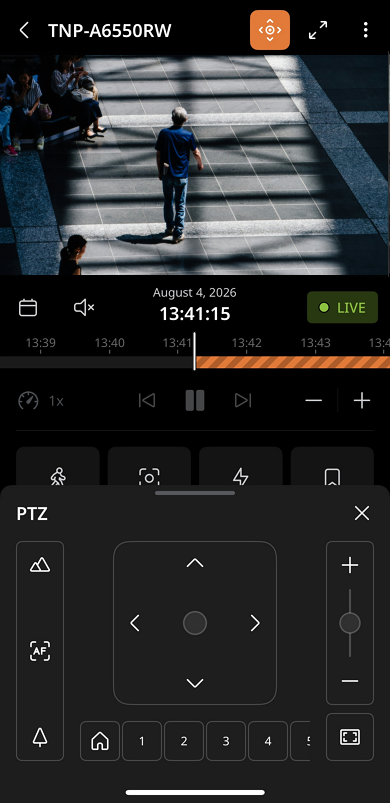
- Focus: Tap
 to set the focus to
far, tap
to set the focus to
far, tap  to set the focus to
near.
to set the focus to
near.- Tap AF to activate the auto focus feature, which automatically sets the focus.
- Control PTZ: Tap or long press the arrow button to move the PTZ camera to the desired direction.
- Tap
 to zoom in the camera and
  to zoom out.
- The Zoom to area feature is only available on Advanced PTZ devices.
- When you double tap on the desired direction on the video, the
camera will pan or tilt to the selected position.
- The Pan/Tilt to Point feature is only available on advanced PTZ devices.
 : Minimizes the camera image.
- Home(
 ):
Moves to the PTZ home position set on the device.
):
Moves to the PTZ home position set on the device. - PTZ presets: Tap the preset number set on the device to execute it.Note: To pan, tilt, and zoom in or out the camera on the video, set it to full screen to use gestures for zooming in and out.
- Focus: Tap