
Logging in to the mobile client
Run the mobile client and select either "Cloud" or "Local" as the login type. If the mobile client and server are on the same network, the server is automatically discovered and displayed. If you have a cloud account, you can log in to the mobile client using that account.
If you have a cloud account, you can log in to the mobile client using that account.
Note:
- If you have a cloud account, you can connect it to BLAZE and log in. For detailed instructions on logging in with a cloud account, see Signing in with your cloud account.
- In addition to using a password, you can log in using facial recognition or fingerprint authentication. For detailed instructions on configuring login methods, see Mobile client settings.
To log in to the mobile client
- Select the server to connect to on the login page of the mobile client.
- If no server is available, tap Connect to server, enter the server information, and then tap Connect.
- Check the server status by the banner color.
- Green: You can connect after completing the server settings.
- PENDING SETUP: Indicates that server setup has not been completed.
- Yellow: The server and mobile client versions are different, but you can still connect.
- Red: Cannot connect to the server.
- OFFLINE: Indicates that the server is not connected to the network and cannot be accessed.
- Green: You can connect after completing the server settings.
- If recently connected servers are available, press and hold a server in the recent connections list to display the shortcut menu.
- Edit connection: Change the IP address of the server or update the saved username and password.
- Delete connection: Delete the selected server.
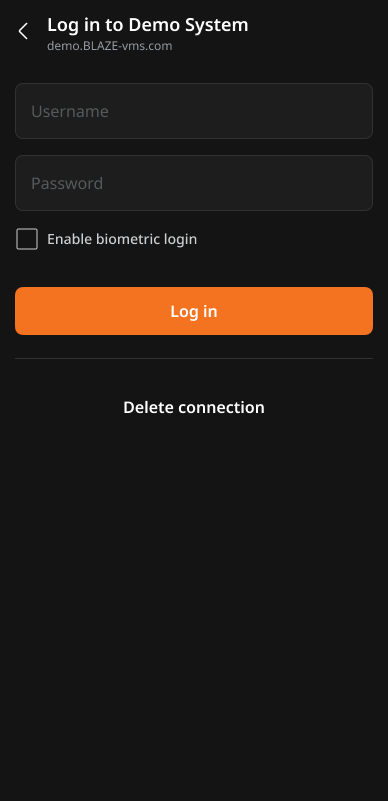
- Enter your username and password, then tap Log in.
- When you log in to the server from the mobile client for the first time, you must enter your password.
- Tap Enable biometric login to save user information. Once biometrics information is authenticated, access will be granted on the mobile device without asking you to enter a password from the next login onwards.
- Tap Delete connection to remove the saved connection information and password.
Logging into system using Hanwha Vision Cloud
If you have a Hanwha Vision Cloud account, you can log in by entering your email address and password. When you log in with a cloud account, you can access cloud-connected systems to search for and play videos.
- Tap Log in to Hanwha Vision Cloud in the upper-right corner of the Login page.
- Enter the email address and password for your Hanwha Vision Cloud account, and then tap Log in.
- If you forget your password, tap Forgot password to open the Hanwha Vision Cloud website and reset your password.
- Open the authenticator app, check the 6-digit verification code, and enter it.
- The authentication code prompt appears only when 2FA is enabled for the cloud account.