
Saving video as a file
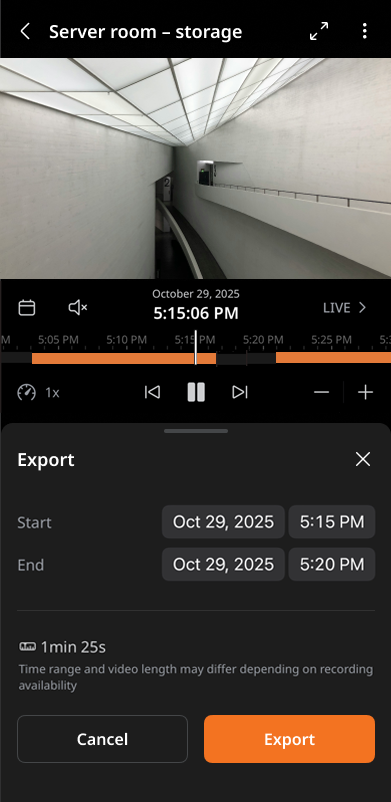
Select the desired section in the timeline panel and save it as a file on your mobile device.
Note: To save video as files, you must have an Administrator permission or video-saving permission.
To save video as a file
- Select a video.
- Select the start and end time on the timeline for the section to save, then tap
 > Export.
 - Check the storage status in More > Download.
- Once the video is saved, tap Open Photos (Open Gallery) to view the saved files.
- Tap More > Download at the bottom to view the list of saved files.
- Video files are saved in the Gallery app for Android OS and the Photos app for iOS.
- Once the video is saved, tap Open Photos (Open Gallery) to view the saved files.