
Viewing the list of users
On the Users page, view a complete list of users registered in BLAZE. Select a user from the list to configure detailed settings for that user. The setting options may vary depending on the selected user.
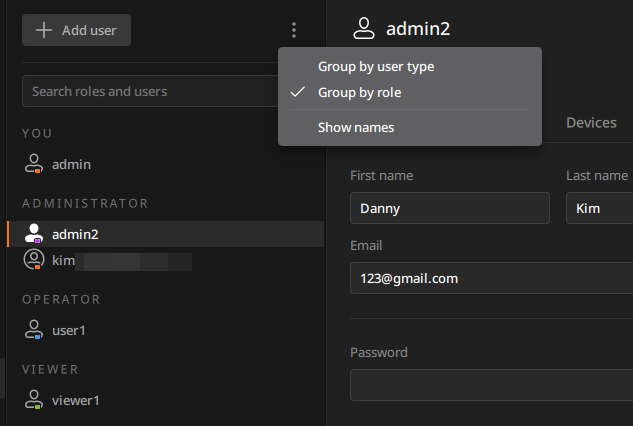
- Enter roles or usernames in the search bar to quickly find users.
- If you are logged in with a Hanwha Vision Cloud account with Global administrator permissions or higher, select Any system at the bottom of the search bar to filter users by specific system. When you select a specific system (multiple selections allowed), both system users and global users belonging to that system are displayed. Cloud users with access permissions to two or more systems may appear duplicated in the lists of each selected system.
- Click
 next to the Add user button to arrange the list of users or display usernames. Regardless of the sorting method, your information will always be displayed at the top of the list.
- Group by user type: Sorted by user type
- Cloud users who are added in the cloud will only be displayed when the cloud is connected to the server.
- Group by role: Sorted based on roles
- Show names: Displays user names. If the user's first name or last name is not registered, names will not be displayed.
- Group by user type: Sorted by user type
- The users displayed in the list may vary depending on the permissions of the logged-in user.
- Super administrator: Displays all users with permissions registered in BLAZE.
- Administrator: Displays users with permissions other than Super administrator, including Administrator permissions.
- Operator: Displays users only with Operator permissions
- Viewer: Displays users only with Viewer permissions
Viewing user types
There are two types of users in the BLAZE system.
- Local user: A user registered in the BLAZE desktop client who can manage
user information and all permissions. Displayed as a
 icon in the user list.
 - Cloud user: A user logged in with a Hanwha Vision Cloud account who can
manage user permissions, but user information can only be modified by the
user in the cloud portal. Displayed as a
 icon with a circle in the user list.Note: In federation mode, a global user group is available. Global users can access all federated systems. User information is visible in general mode, but user information or permissions can only be modified in the federation system. They are displayed as a icon in the user list.