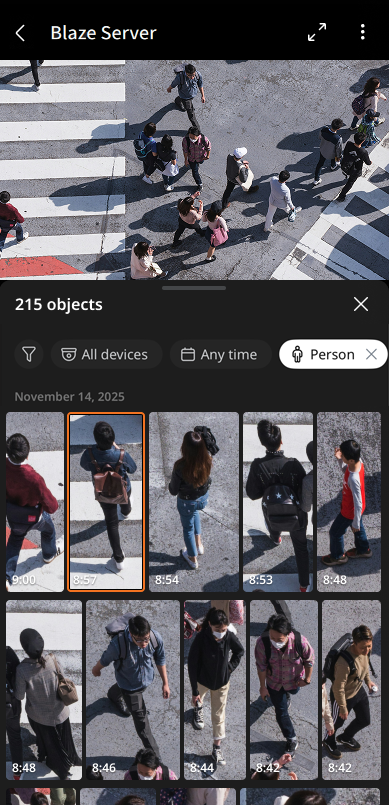
Searching for objects
Search for objects saved on the server by date, device, and object type, and select filters to apply. Play videos where objects were detected and save them as video files.
To search for objects
- Tap Objects at the bottom of the mobile client.
- Tap Objects in the tab panel to navigate to the Objects tab.
- Tap the filter icon
 to select filters and tap OK:
- Object type: Select the object type to search for among Person, Face, Vehicle, and License plate.
- Devices: Select the device to search for. Multiple devices can be selected.
- Time period: Set the time range to search among Any time, Last 1 hour, Last 12 hours, Last 24 hours, Last 7 days. To customize a time range, select Custom period and enter start and end date and time.
- Tap
 at the top-right to create a region of interest (ROI). To create an ROI, tap and drag anywhere on the video to search for objects in the set area.
- When you select an object type in the search filter, set the attributes of the object type.
- Person: Gender (male, female, other), Upper clothing color, Lower clothing color, Bag (yes, no)
- Face: Gender (male, female, other), Age (young, adult, middle, senior), Mask (yes, no), Glasses (yes, no)
- Vehicle: Subtype (car, bus, truck, motorcycle, bicycle), Color
- License plate: Number
- Once the search results are displayed, select the desired object to play the video.