
Initial BLAZE setup
After installing the client and running it for the first time, set the Super administrator password for the server and client to connect.
Note: The server information and Super administrator password set during initial setup can be changed in the Settings menu in BLAZE.
- Server > Configuring general settings
- Users > Configuring general settings
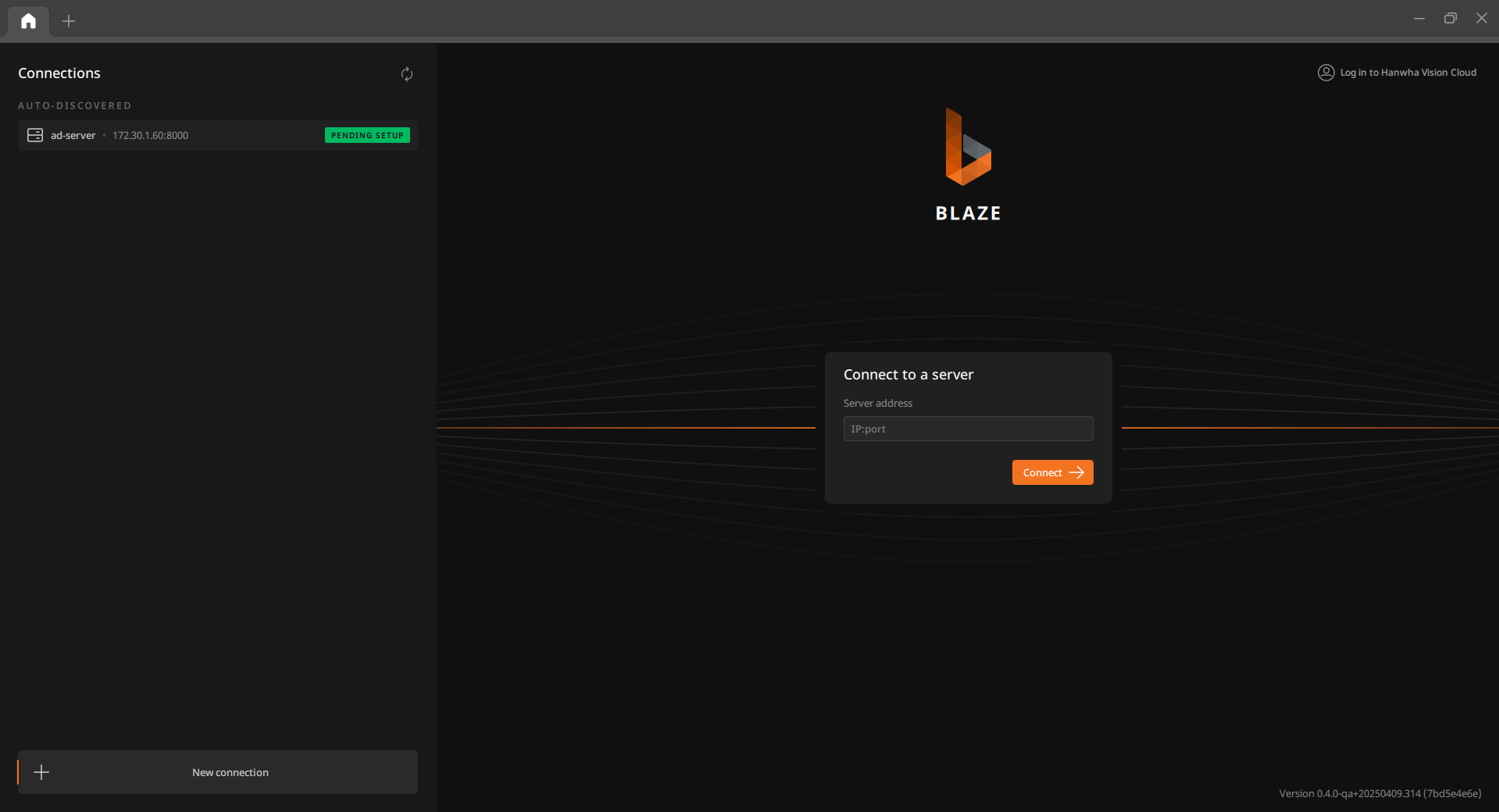
Configuring server connection
Enter the IP address and port of the server to connect to the client.
Note: If the client is restarted, the previously connected server information is displayed in the server list on the Login page.
- Servers are automatically discovered and displayed in the list.
- Check the connection status between the client and server in the
server list.
- Online: The server is connected to the client.
- Offline: The server and client are disconnected. Logging in to an offline server is not possible.
- Pending setup: The server setup is not complete. Enter the system name and the Super administrator password to finalize the setup.
- Select the desired server from the list of servers and right-click to access
the shortcut menu.
- Connect: Establish a connection to the selected server.
- Edit server address: Edit the address of the selected server for connection.
- Delete connection: Remove the selected connection from the list.
To connect to the server
- Click + New connection at the bottom of the server list on the Login page.
- If the system or server is not in the list, click
 at the bottom left to add a new system or server.
- If the system or server is not in the list, click
- When the Connect to a server window appears, select the server to connect using one of the following methods:
- Select the system or server from the server list on the left.
- Click the server address displayed in the Log in to window to open the Connect to window. Enter the address and port of the system or server to connect.
- If you enter only the server IP, the server default port (8000) is used automatically.
- If you change the server port, enter it in the following format: 192.168.1.1:8080.
- Click Connect→.
Setting up BLAZE VMS initially
Set the system name and the Super administrator password for logging in to the client.
To set up BLAZE initially
- When the Welcome to BLAZE VMS dialog appears, click Begin setup
 .
. - Enter the system name and click Next→.
- Enter the Super administrator password and click Next→.
- The password setting rules are as follows.
- Set the password between 8–32 characters.
- If the password length is 8–9 characters, the password must include at least three of the following: uppercase letters, lowercase letters, numbers, and special characters.
- If the password length is 10 characters or more, the password must include at least two of the following: uppercase letters, lowercase letters, numbers, and special characters.
- The username cannot be used as the password.
- Password cannot contain 4 or more sequential characters (e.g., 1234, abcd).
- Password cannot contain the same character 4 or more times in a row (e.g., !!!!, 1111, aaaa).
- Accepted special characters are ~`!@#$%^&*()_-+={}[]|;:'"<>,.?/.
- Spaces cannot be used.
- The password setting rules are as follows.
- When the completion dialog appears, click Finish.