
Searching by time
Search for videos stored in BLAZE by selecting the date and time.
To search by time
- On the Home page, click View.
- Click Devices on the View tab navigation bar.
- Select the device to play the video in the Scene panel.
- Click the Timeline on the View tab navigation bar.
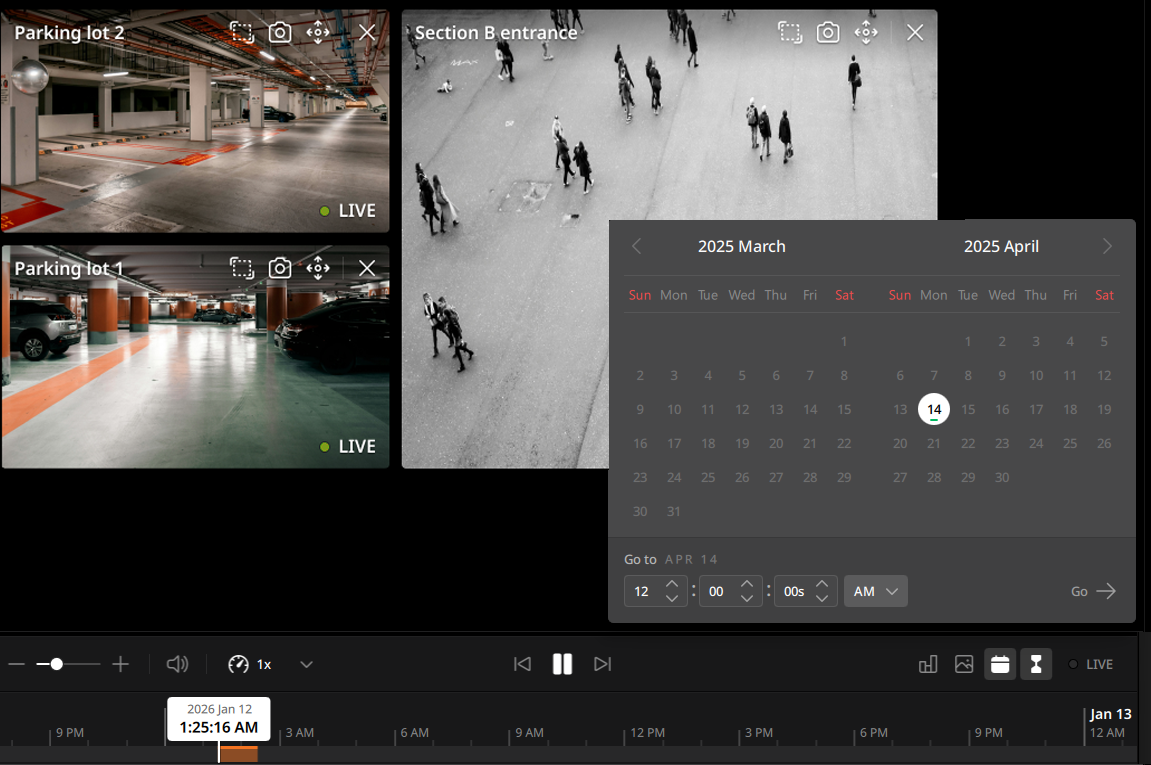
- In the Timeline panel, click the date selector
 .
. - In the Date selector panel, select the date and time you want to search for.
- The dates with recorded video are indicated by green lines.
- Enter the time directly. If a time later than the current time is entered, real-time monitoring footage will be displayed.
- Click Go → to move to the selected time and play the video. Then the panel disappears.
- To close the Date selector panel, click .
- To close the Date selector panel, click