
Adding an LDAP server
Enter the LDAP server information configured in BLAZE to add it. LDAP server groups with the same name as roles created in BLAZE are automatically matched and registered. Users included in LDAP server groups are assigned the matched roles.
Note: Only users with an Administrator role can add LDAP servers.
To add an LDAP server
- Click Settings > LDAP.
- In the LDAP settings page, click Settings.
- In the LDAP server settings dialog, enter the LDAP server information and click Next→.
- Server URL: Enter the IP address or domain name of the LDAP server.
- The port number can also be included in the Server URL. The default port is 389, and to use SSL/TLS, enter 636.
- Example: ldap://ldap.company.com, ldap://192.168.1.100, or ldap://ldap.company.com:389
- Admin DN or CN:: Enter the DN or CN of the LDAP server administrator account.
- The DN (Distinguished Name) represents a domain component, while the CN (Common Name) signifies a general name.
- Example: cn=admin,dc=company,dc=com
- Password: Enter the password for the LDAP server administrator account.
- Search base: Enter the DN of the group from which to retrieve user information from the LDAP server. This denotes the starting point for user searches within the LDAP directory.
- Example: ou=users,dc=company,dc=com
- Search filter: Specifying a particular attribute value reflects it in the LDAP server search results for users. Search results differ when searching without group information versus with group information. Use the examples below to select the desired search filters.
- When you search for users without group information, enter as follows:
- Example: uid=*
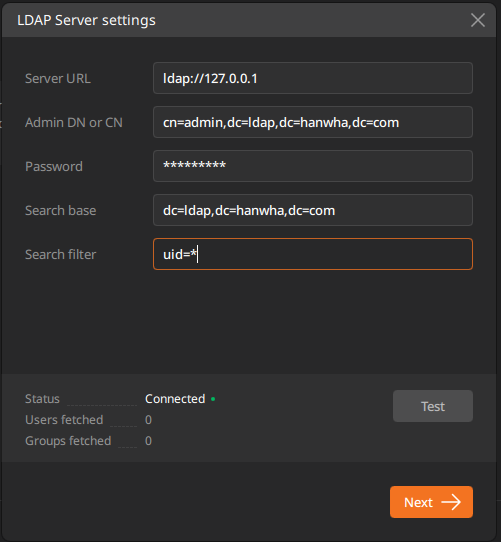
- Search results will be: Users fetched = 0 , Group fetched = 0
- Example: uid=*
- When you enter group information and search for a user, enter as follows:
- Example: (|(cn=*)(uid=*))
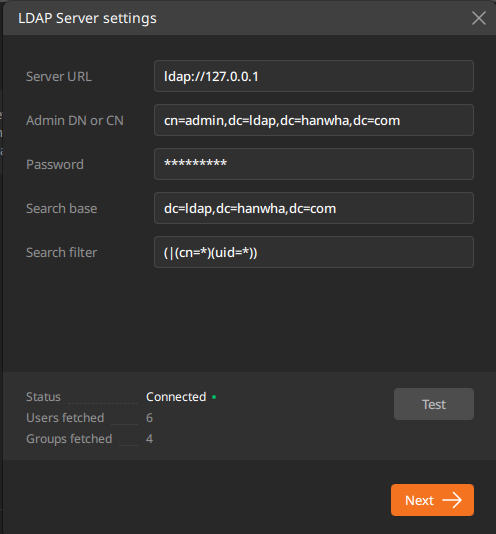
- Search results will be: Users fetched = 6 , Group fetched = 4
- Example: (|(cn=*)(uid=*))
- When you use a specific user, enter as follows:
- Example: (|(cn=cms1)(uid=cms-user1))
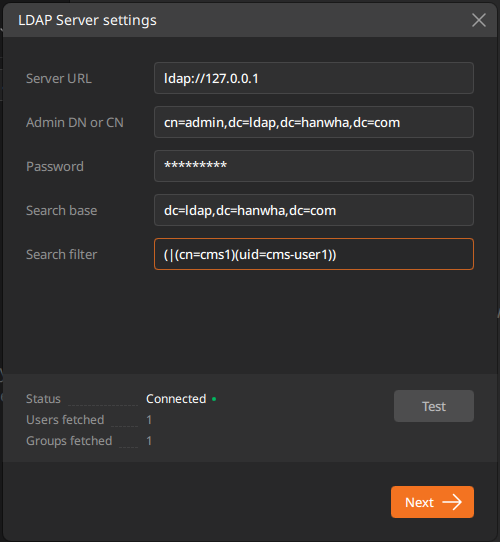
- Search results will be: Users fetched = 1 , Group fetched = 1
- Example: (|(cn=cms1)(uid=cms-user1))
- When you search for users without group information, enter as follows:
- Test: Test the connection using the LDAP server information entered.
- When successfully connected, "Connected" will be displayed in the Status. Users fetched indicates the number of users found, while Groups fetched shows the number of groups found.
- If the LDAP server fails to connect properly, further steps cannot be proceeded with.
Note: If the connection to the LDAP server fails, check the following items.- Firewall and port settings for the LDAP server.
- Hostname, port number, and protocol of the LDAP server.
- Domain name of the LDAP server.
- Information regarding the administrator account of the LDAP server.
- Server URL: Enter the IP address or domain name of the LDAP server.
- Once the LDAP server is connected, select the user groups and users to synchronize, and then click Save.
- Enter a user group or username in the search bar at the top to quickly search.
- Only LDAP users included in the user group can be registered. LDAP users not included in the group cannot be added individually.
- Click Apply.Note:
- When an LDAP user is a member of multiple groups, information within the group with the same name as the role created in BLAZE takes precedence and is added first.
- When the LDAP username matches the BLAZE username, an alert message will be displayed at the top of the screen. Click Replace local users in the alert message to delete the local user information in BLAZE and register new information with LDAP users.
- LDAP users that don't belong to a group on the LDAP server don't appear in search results.
Setting up synchronization with an LDAP server
When you register an LDAP server and configure synchronization with BLAZE, any changes to user groups and user information on the LDAP server will be consistently reflected in BLAZE with each synchronization cycle. Click Apply after setting the synchronization cycle.
- Select Never to synchronize the LDAP server and BLAZE manually, click Refresh to manually execute the synchronization.
- The default automatic synchronization cycle is 24 hours, with options ranging from 10 minutes to 7 days. Setting a shorter synchronization cycle may increase system load, so choose an appropriate cycle.
- When BLAZE is synchronized with an LDAP server, changes such as user group modifications and user information updates are consistently reflected at each synchronization cycle. Furthermore, deleting a user from the LDAP server will also result in the user being removed from BLAZE accordingly. Note: If synchronization is disabled, changes made on the LDAP server will not be reflected in BLAZE.
- Only when synchronization is not enabled, Administrator can modify or remove mappings between LDAP groups and BLAZE roles.