
Searching for a bookmark in the View tab
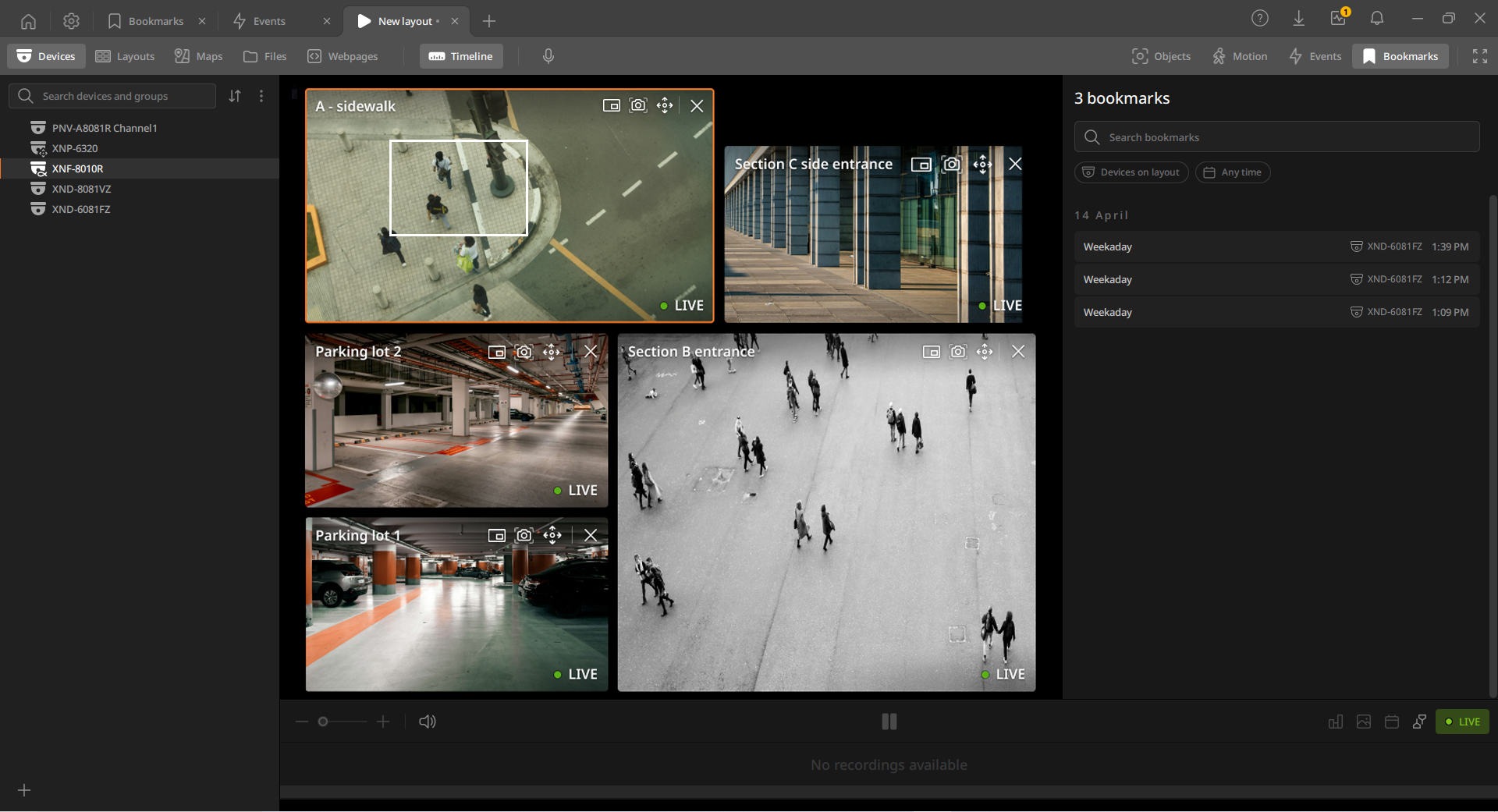
Add bookmarks with notes to recorded videos in BLAZE to find them quickly later. In the Bookmarks panel, view the list of bookmarks and edit or delete them as needed. Double-clicking a bookmark in the Bookmarks panel plays the bookmarked video in the device tile in the layout.
Note: For more information on adding bookmarks, see Adding a bookmark.
To search for a bookmark in the View tab
- On the Home page, click View.
- Click Bookmarks on the View tab navigation bar.
- In the Bookmarks panel, set the search attributes.
- Enter a bookmark name or device information in the search bar.
- Filter by device: Select Selected device to search bookmarks from only the selected device; select Devices on layout to search bookmarks from all devices added to the layout.
- Filter by time: Select a time range to search for bookmarks. The default is Last 12 hours.
- Click a bookmark in the Bookmarks panel to play it in the Scene panel.
- Right-click a bookmark to open a shortcut menu.
- Open in Bookmarks tab: Open the selected bookmark in the Bookmarks tab.
- Edit bookmark: Modify the selected bookmark.
- Delete bookmark: Delete the selected bookmark.
- Export video: Save the selected bookmark as a file.
- If there are no search results, click All bookmarks history to navigate to the Bookmarks tab.
- Right-click a bookmark to open a shortcut menu.