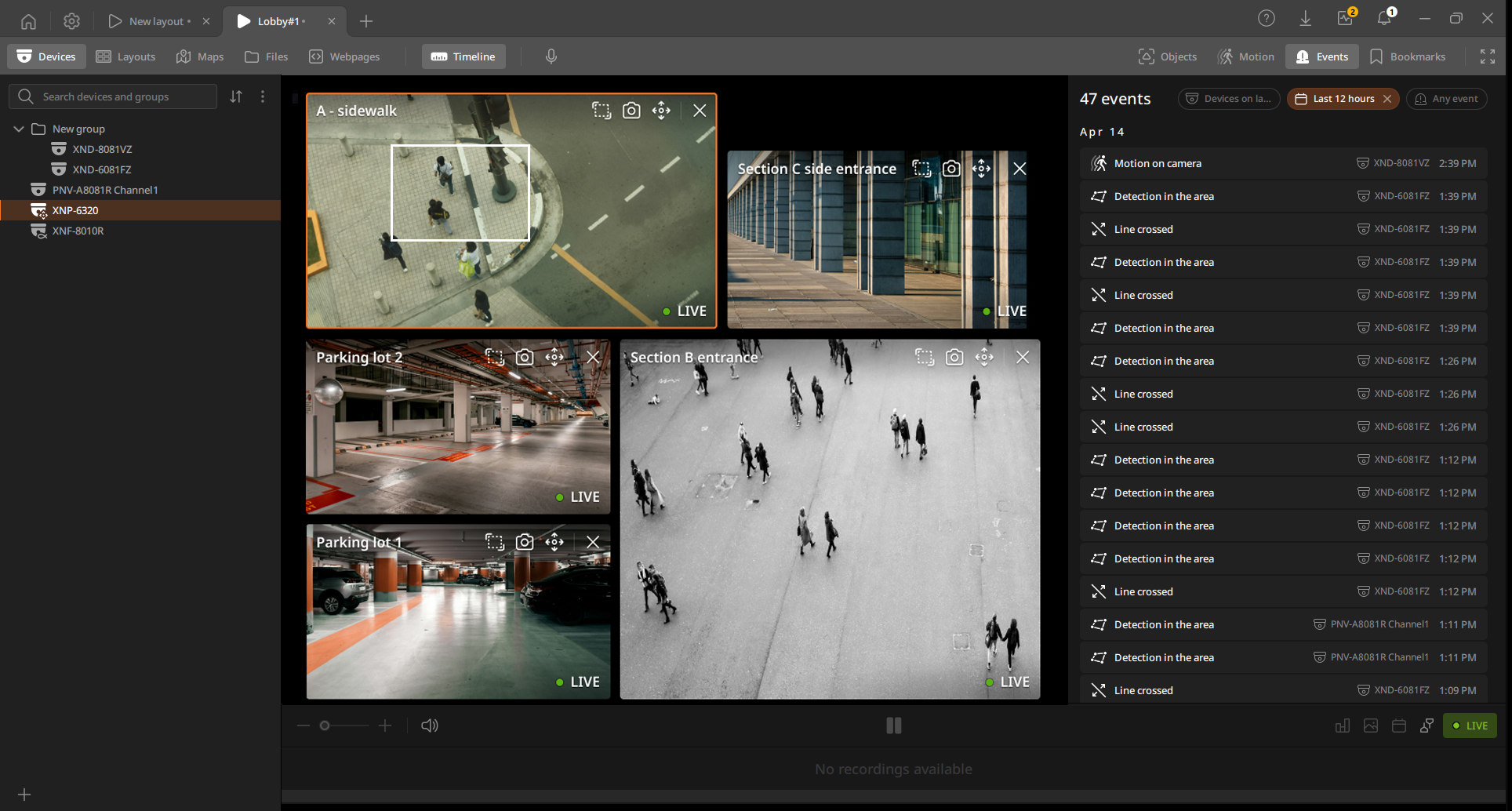
Searching for an event in the View tab
In the Events panel, the event details within the timeline range of the selected device are immediately displayed, allowing you to monitor important events without missing them. Click an event in the Events panel to play the recorded video on the device item in the layout.
To search for an event in the View tab
- On the Home page, click View.
- Click Events on the View tab navigation bar.
- In the Events panel, select filters.
- Filter by device: Select Selected device to search for events from only the selected device; select Devices on layout to search for events from all devices added to the layout.
- Filter by time: Select a time range to search for events. The default is Last 12 hours.
- Filter by event: Select the desired event type among the event
attributes. Select Any event to search for
all events.
- The available event attributes may vary depending on the connected device.
- Click an event in the Events panel to play it in the Scene panel.
- If there are no search results, click All events history to navigate to the Events tab.
- Events are displayed in different colors based on their priority. Typically, system events that require immediate action have a higher priority, while device events for monitoring have either no priority or a lower one.
- Priority 0 (Red): Device disconnected, Server stopped, Storage error, License expired
- Priority 1 (Yellow): Server started
- Priority 2 (green): Device connected
- Priority 3 (white): Other remaining events
- Right-click an event to open a shortcut menu.
- Open in events tab: View the selected event in the Events tab.
- Add bookmark: Set the selected event video as a bookmark.
- Export video: Save the selected event video as a file.
- For more information about playing the video, see Playing the video.