Viewing a file
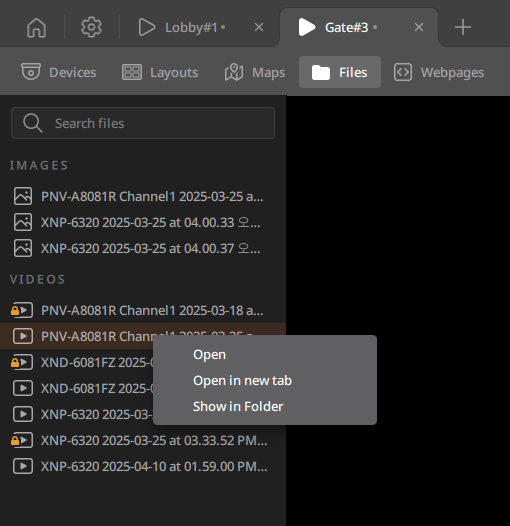
Click View on the Home page and click Files on the View tab navigation bar to view image snapshot, video, or audio files stored in the folder set in the Client settings menu. Drag desired files from the Files panel to the Scene panel to preview them instantly.
Note:
- In the Client settings, files located in the BLAZE export path folder are automatically updated.
- To view the storage path of BLAZE's images, video, or audio files, see Client settings.
- Only the following file formats supported by BLAZE are displayed under the Files tab.
- Image formats: .jpeg, .jpg, .png, .bmp, .svg
- Video formats: mkv, .mp4, .avi, .mov, .webm, .gif, .blzm, .exe
- Audio formats: .mp3, .wav
To view files stored in the default export path
- Click View on the Home page.
- Click Files on the View tab navigation bar.
- The Files panel will display a list of files stored in the default export path.
- When you select a file in the Files panel and right-click it, a shortcut menu will appear.
- Open: Adds the selected file to a layout.
- Open in new tab: Opens the selected file in a new tab.
- Show in folder: Displays the folder where the selected file is saved.
- When you select a file in the Files panel and right-click it, a shortcut menu will appear.