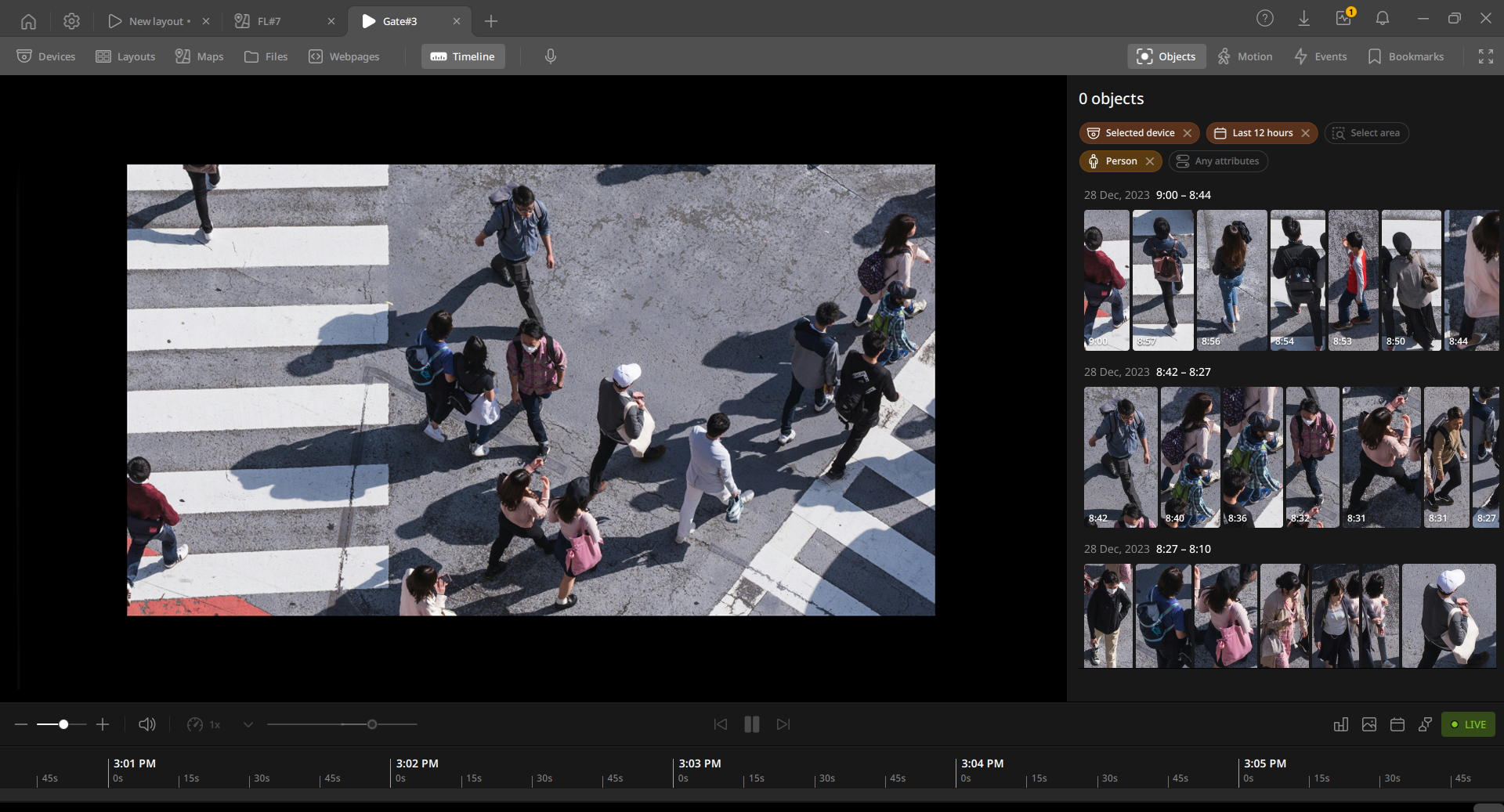
Searching for an object in the View tab
The Objects panel immediately displays object detection events within the timeline range of the selected device, so important events are not missed. Click an object in the Objects panel to play the recorded video on the device item in the layout.
Right-click an event in the Objects panel to open the shortcut menu. Select Open in Objects tab to navigate to the Objects tab. If no results appear based on the current filter, use the Objects tab to perform the search.
Note: Object detection is a feature supported by AI cameras only. To use the Object detection feature, set up details on the Objects or Video analytics tab of the Devices settings menu. For more information, see Configuring objects settings.
To search for an object in the View tab
- On the Home page, click View.
- Click Objects on the View tab navigation bar.
- In the Objects panel, select filters.
- Filter by device: Select Selected device to search for objects from only the selected device; select Devices on layout to search for objects from all devices added to the layout.
- Filter by area: Select Select area to set the object detection area in the item. Only events that occur within the selected area item will be searched.
- Filter by time: Select a time range to search for events. The default is Last 12 hours.
- Filter by object: Select the desired object among Person, Face, Vehicle, and License plate. If no object is selected, all object events are searched.
- Click an object in the Objects panel to play it in the Scene panel.
- Objects are displayed with the most recently detected objects at the top.
- Right-click an object to open a shortcut menu.
- Open in Objects tab: View detailed information of the selected object in the Objects tab and perform additional searches.
- Export video: Save the video as a file.
- For more information on searching for and viewing objects, see Searching for an object.