
Controlling a video tile
Monitor the video of devices connected to BLAZE and control the video tiles.
Note:
- The items that can be controlled vary depending on the connected device.
- When controlling video tiles, the following options may not be displayed or accessible depending on the user's permissions.
- PTZ
- Device settings
- Temperature detection (thermal camera)
- Face zoom
To control a video tile
- On the Home page, click View.
- Click
 on the tab bar to open the new layout tab.
- Click
- Click Devices or Layouts on the View tab navigation bar to open the Devices or Layouts panel. Drag the desired device or layout to the Scene panel.
- The video tile of the device is displayed in the Scene panel.
- Select the desired icon on the video tile to control it.
Video tile control functions
Select a video tile to control.
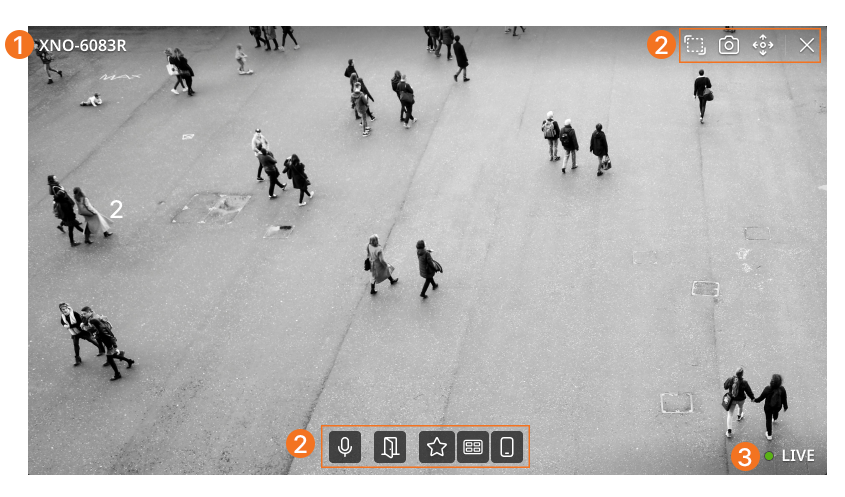
| No. | Item | Description |
|---|---|---|
| ❶ | Device name | Displays the device name. |
| ❷ | Tile control functions | Displays the control function icons available for the video tile.
|
| ❸ | Live mode indicator | Displays the current live mode status. |
 : Select an area in the video tile to search for events.
 : Zoom in on the video using digital zoom to enlarge the video and display it in a new tile. Multiple crop windows can be created, and each crop window border is displayed in a different color.
 : Capture the current video and save it as a PNG file. Saved screenshots can be viewed in Files on the navigation bar.
 : Control the video using PTZ functions.
 : When an intercom that supports the face zoom feature is connected, switch between full video view and face zoom mode.
 : Output audio from the connected device.
 : Manually trigger a one-time event to execute a predefined event action. The icon displayed may vary depending on the user's settings. The icon appearance can be changed in
  : Open the door when an intercom is connected.
 : When a device that supports the heater function is connected, activate the camera heater.
 : When a device that supports moisture removal is connected, the camera rotates rapidly three times in one direction to remove moisture.
 : When a device that supports the wiper function is connected, operate the camera wiper.
 : Close the video tile. Closing a video tile does not remove it from the layout or device list.
Using the video tile shortcut menu
Select a video tile and right-click it to open the shortcut menu. You can use the following control functions from the shortcut menu.
- Open in new tab: Play the current video tile in a new tab.
- Open in new window: Play the current video tile in a new BLAZE window. This feature is useful when monitoring specific channels in a multi-monitor environment.
- Close: Close the video tile.
- Show info: Display information such as the video codec and resolution.
- Show metadata overlay: Display metadata on the video.
- Fit mode: Configure the video tile to fit the screen while maintaining the original aspect ratio, or stretch it to fill the screen.
- Always show device name:Always display the device name on the video.
- Video streams: Configure the stream for the device added to the current layout. The default setting is Auto, and you can select Primary or Secondary.
- PTZ: Control the video using PTZ functions. You can also run PTZ groups and presets.
- Dewarping mode: Configure the dewarping mode for fisheye camera video.
- Screenshot: Capture the current video and save it as a PNG file.
- Create crop window: Use digital zoom to enlarge the video and display it in a new tile.
- Device settings: Open the Device settings page to configure detailed device settings.