
Monitoring alerts in real-time
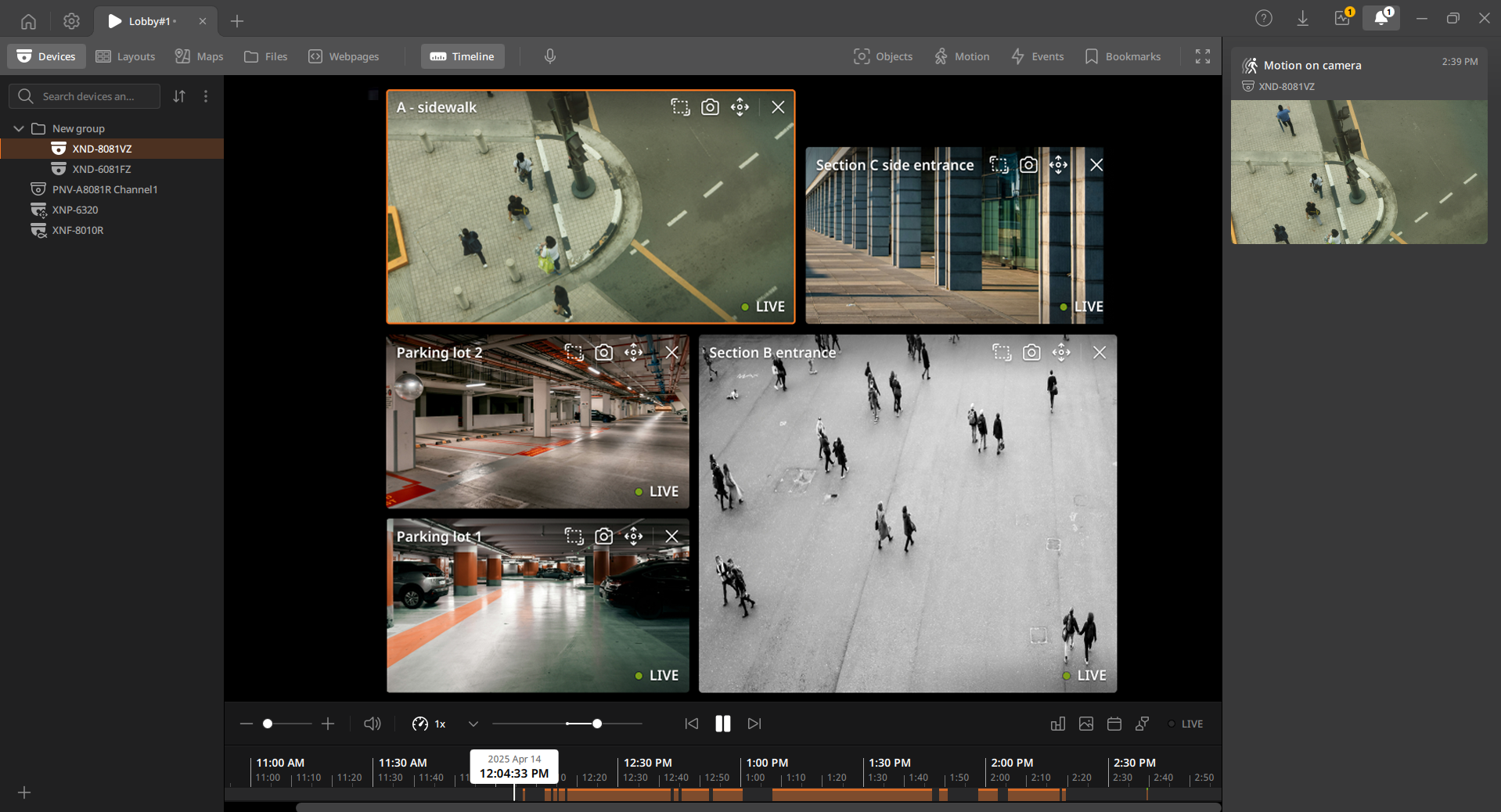
View currently active issues with devices connected to BLAZE in the Alerts panel. Even when not actively monitoring the Scene panel, the number of real-time events is always displayed in the Alerts tray at the top of the client.
Note: Administrator role is required to access Edit rule in the shortcut menu of the Alerts panel.
To check real-time events
- Click the
 in the Tab bar.
 - In the Alerts panel, double-click the desired event.
- Right-click an event in the Alerts panel to open the shortcut menu, where you can play the event video or modify event rules.
- Open device: Play the event video.
- Open device in new tab: Play the event video in a new tab.
- Show previews: Set whether to display previews of events. This setting applies to all events in the Alerts panel.
- Show descriptions: Set whether to display event descriptions. This setting applies to all events in the Alerts panel.
- Edit rule: Modify the rule for the selected event in the Rule settings screen. Administrator privileges are required.
- Event detailed info: View detailed information about the selected event in the Event search screen.
- Clear notification: Remove the selected event from the Alerts panel.
- Clear all notifications: Remove all events from the Alerts panel.
- Right-click an event in the Alerts panel to open the shortcut menu, where you can play the event video or modify event rules.
- The event video plays in the Scene panel.
- If the device is included in a layout, the video is played in that layout.
- If the device is included in a layout, the video is played in that layout.