
Controlling PTZ mode
When a camera's PTZ mode is enabled, you can control its Pan/Tilt/Zoom (PTZ) functions. To turn PTZ mode on or off, click  (Simple PTZ) or
  (Advanced PTZ) at the top of the video item.
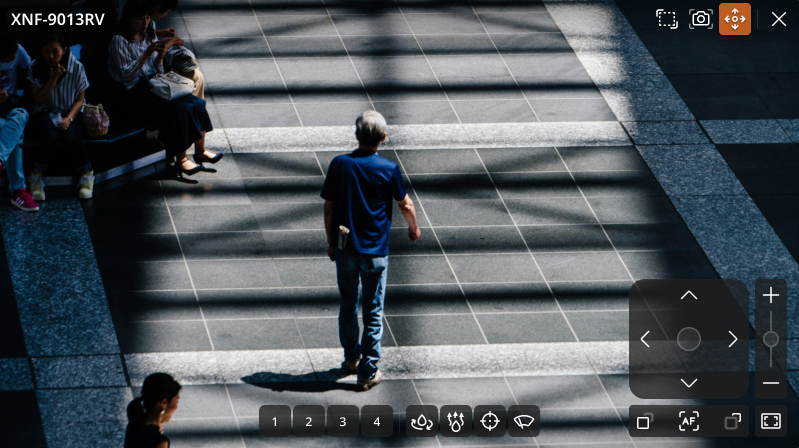
Selecting a PTZ mode
There are two PTZ modes: Simple PTZ and Advanced PTZ. If the camera supports Advanced PTZ mode, it is set as the default.
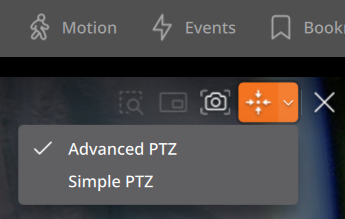
The behavior of Simple PTZ and Advanced PTZ modes differs as follows.
The full zoom out function is always available regardless of the selected mode. While using Simple PTZ mode, press and hold the [Shift] key to temporarily access Advanced PTZ functions such as moving to a point and area zoom.
| Item | Simple PTZ | Advanced PTZ |
|---|---|---|
| Cursor on item hover |  Move Move |
 Cross Cross |
| Action on click | Default (camera gets selected) | Go to point mechanics are activated |
| Action on drag | Drag arrow is displayed, and continuous PTZ is activated | Zoom to area frame is displayed, and camera zooms to selected area after drag is finished |
| Action on mouse wheel | Camera zooms in/out (physical zoom) | Camera zooms in/out (physical zoom) |
Moving to home position
Click  on the PTZ video tile to move the camera to its configured home position.
Auto-tracking
- Click
 on the PTZ video tile to enable auto-tracking.
 - To disable auto-tracking, click the icon again (highlighted in orange) to deselect it.
PTZ group and preset execution
Right-click a video tile and select PTZ to execute a PTZ group or preset. Select a group or preset number from the shortcut menu to execute it on the tile.
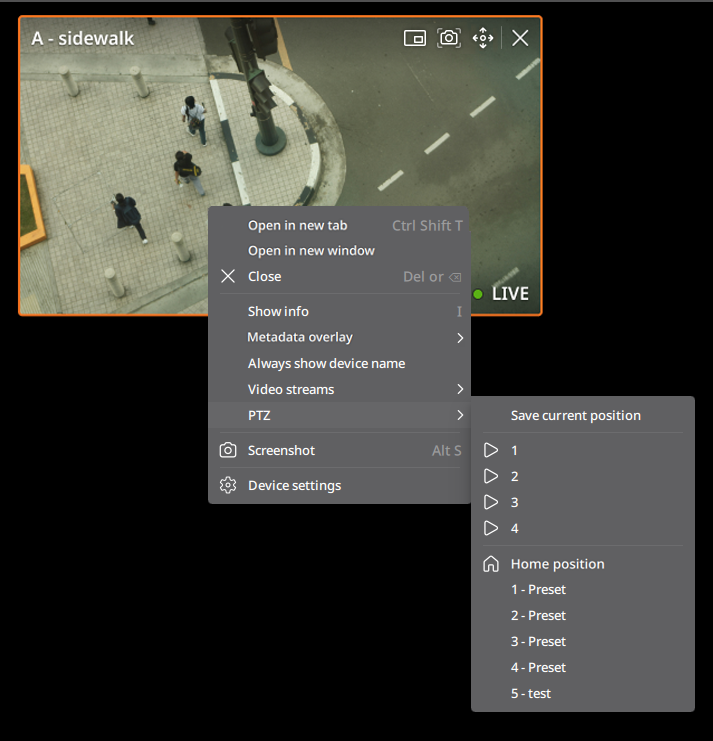
- Save current position: Save the current position as a preset. In the Preset settings dialog, enter the preset number and name, then click Save.
- The added presets can be found in the PTZ tab of the camera.
- Execute PTZ group: Select a PTZ group number to initiate the registered group.
- Move to PTZ Home position: Move to the camera's Home position.
- Move to PTZ preset: Select a PTZ preset number to move to the preset position.