
Setting a user
Configure the detailed settings for the user added to BLAZE.
Note: An Administrator role is required to change user settings.
Users page
In the Users page, select a user from the list of users to configure specific settings about the user.
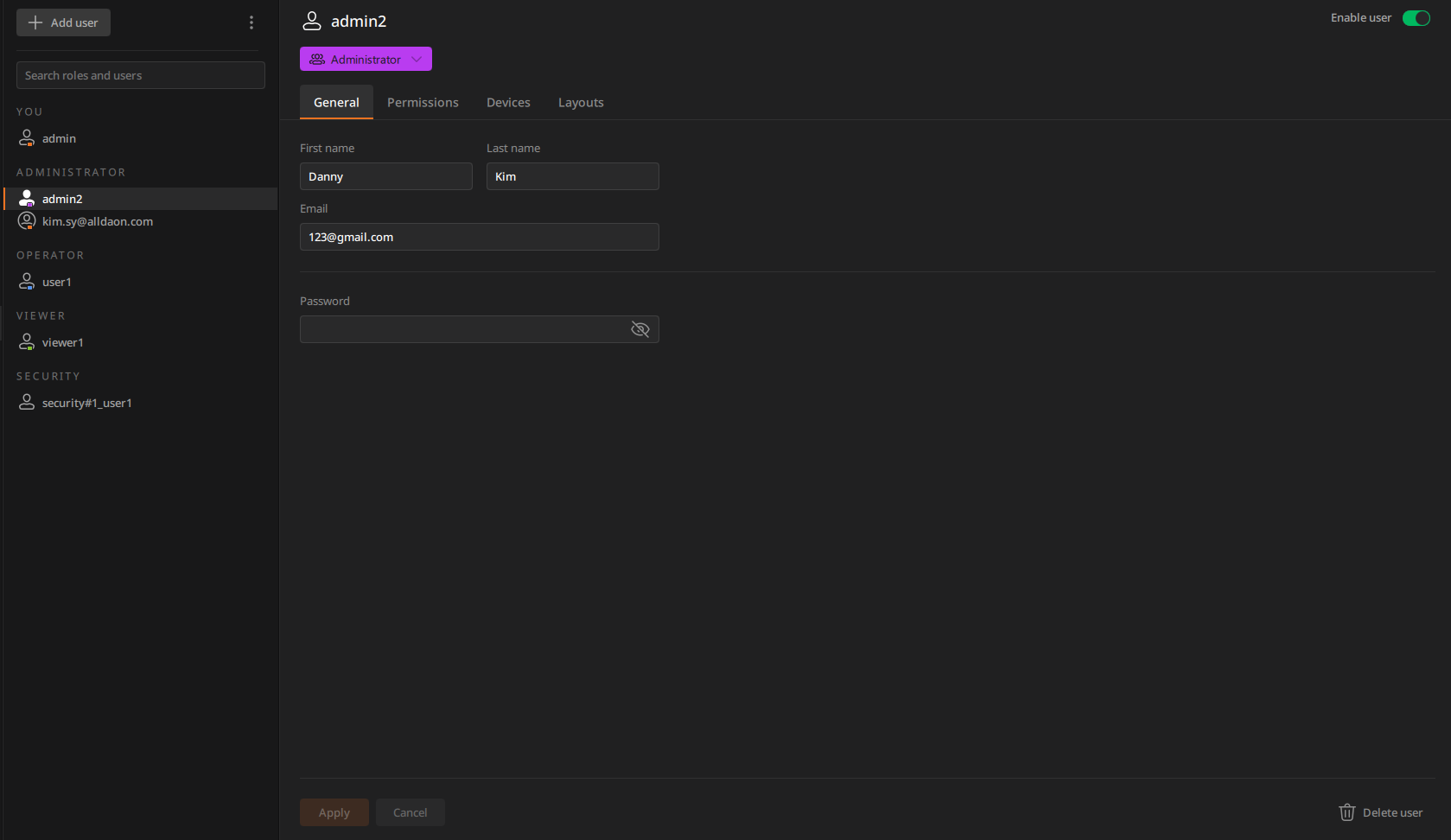
Viewing the tabs in the User settings panel
There are various tabs for user settings:
- Selecting a tab displays detailed configuration options. In special cases, such as when the selected user is inactive, a banner message appears at the top of the tab.
- After completing the settings, click Apply at the bottom to save the settings.
- Select multiple users to modify or delete common settings.
- When selecting users with different permissions, the tabs are
displayed based on the user with higher authority. For example, if
you select Administrators and Viewers, a message
"Others" will appear at the top
of the page to notify you that users with different permissions have
been selected. And only the Permissions,
Devices, and
Layouts tabs are displayed, with the
General tab not being shown. The setting
options in the tabs are displayed based on the Administrator
user, and in the Permissions tab, functions
that Viewers cannot access are marked with an
 .
. - Press and hold [Ctrl] and select users in the list to select individual users who are far apart in the list. Press and hold [Shift] and click users to select all users up to the last one selected.
- Currently logged-in users cannot be selected with other users.
- When selecting users with different permissions, the tabs are
displayed based on the user with higher authority. For example, if
you select Administrators and Viewers, a message
"Others" will appear at the top
of the page to notify you that users with different permissions have
been selected. And only the Permissions,
Devices, and
Layouts tabs are displayed, with the
General tab not being shown. The setting
options in the tabs are displayed based on the Administrator
user, and in the Permissions tab, functions
that Viewers cannot access are marked with an