
Viewing a user’s permissions
Permissions are actions that a user is allowed to do, like view live, create layouts, export video. View the access rights of the selected user in BLAZE. Users are assigned to specific permissions either by default role in BLAZE or roles registered by administrators, enabling them to utilize only the functions set in the roles. Options that users do not have permission to access will either not be displayed on the client or will be disabled, making them unavailable for use.
Note: The Permissions tab displays a list of permissions configured in the Roles page. To modify the detailed settings for roles, see Configuring role settings.
To view a user’s permissions
- Click Settings > Users.
- Select the desired user from the list of users.
- In the User settings panel, click the Permissions tab.
- Check the permissions of the user.
Viewing a user’s permissions
The role to which a user is assigned can be found at the top of the Users page.
- To see the detailed permissions of a role, see Setting permissions.
Setting custom permissions
When selecting Custom permissions upon adding a user, set different permissions for each user.
Note: Custom permissions are different from Custom roles. The Custom Permissions option allows direct configuration of each user's permissions, rather than assigning them to a specific role created in the Roles page.
To set custom permissions
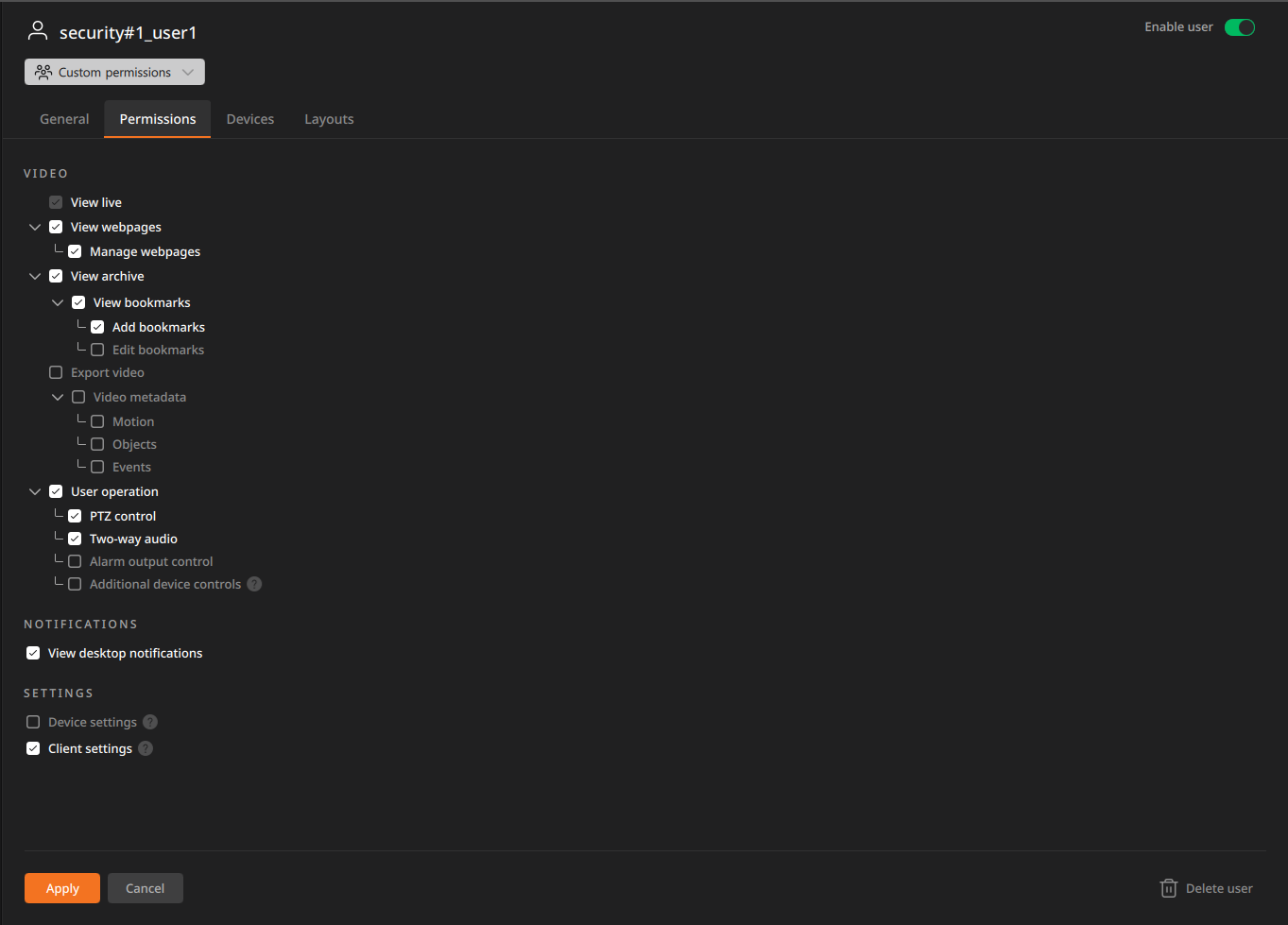
- Select the desired user from the list of users.
- In the User settings panel, click the Permissions tab.
- Select the permissions you want to assign to the user.
- After completing the settings, click Apply.