
Using a layout
A layout is a set of cameras and other items (images, webpages, video files) that can be saved for a quick access, assigned to other users, and opened in a separate tab in BLAZE.
Users can view layouts they have created by default, as well as shared layouts assigned to their role. Users with layout-setting permissions can add layouts to BLAZE in their desired configuration and share them with other users. By utilizing the layout sharing feature, multiple users can monitor with the same layout.
Note: Only users with an Administrator role can share layouts. For more information about shared layouts, see Setting a layout.
To use a layout
- On the Home page, click View.
- Click
 button on the Tab bar to open the New
Layout tab.
button on the Tab bar to open the New
Layout tab.
- Click
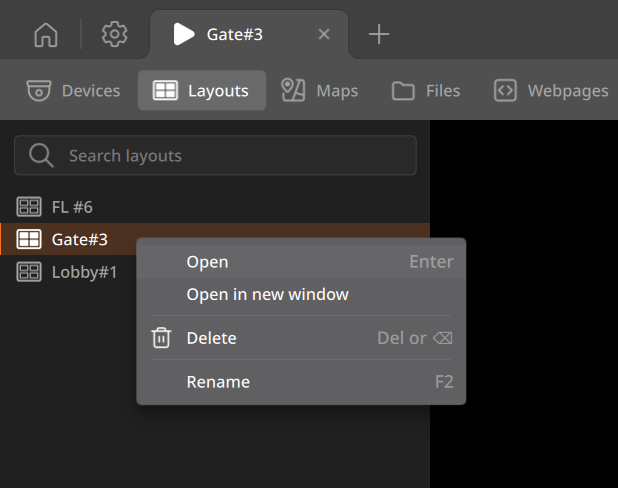
- Click Layouts on the View tab navigation bar.
- Drag the desired layout from the Layouts panel list onto the Scene.
- Alternatively, double-click the layout or right-click it and select Open to add it.
- Enter the layout name in the top search bar to quickly find it; the search is not case-sensitive.
- Only one layout can be run in the Layouts tab. Even if you add multiple layouts to the Scene panel, each selected layout will run on its own tab.
- The layout will run in the Scene.
Setting a layout
After assigning a layout, use features such as displaying video information and saving the layout.
- Right-click an empty area of the Scene panel to display the shortcut menu. From the shortcut menu, save the layout or configure video stream settings.
- Show info: Display information such as the video codec and resolution.
- Show metadata overlay: Display metadata on the video.
- Item spacing: Adjust the spacing between items in the layout (Normal/Narrow/No spacing).
- Fit mode: Set the video tile to fit the screen while maintaining the aspect ratio of the original video, or stretch it to fill the screen.
- Always show device name: Always display the device name on the video.
- Save layout: Save the current layout.
- Save layout as...: Save the current layout with a specified name.
- Video streams: Set the stream of the device added to the layout. Choose between Auto (default), Primary, and Secondary.
Setting the video ratio
Set the video ratio for individual video items or the entire layout.
- Fixed ratio: Maintain the original aspect ratio of the video.
- Stretch: Stretch the video to fill the panel.
Applying to individual items
- Right-click an item and select the desired ratio option from the shortcut menu.
- You can select multiple items and apply the setting to all selected items at once.
Applying to the entire layout
- Right-click an empty area of the layout and select a ratio option from the shortcut menu to apply it to all items in the current layout.
Note: This setting does not apply to dewarped fisheye video, cropped items, or webpage items.
Using a shared layout
When an Administrator shares a layout with another user, the shared layout appears in the Layouts panel. Both the Administrator and the assigned users can monitor the shared layout. To learn how to share layouts by user or role, see Roles > Setting a layout or Users > Viewing the layouts a user can access.
 will be displayed on the shared layout.
- If any of the devices included in a layout are not assigned to a user or that the user does not have permission to access, those devices cannot be monitored in the layout.
Closing a layout
To exit a running layout tab, click the  button on each tab.
button on each tab. - Right-click the tab you want to close in the Tab bar to display the shortcut menu. Click Close to close the current tab; click Close other tabs to close all other running tabs besides the current one.