
Configuring failover settings
If any of the clustered servers disconnects or fails to record video, the cameras or devices connected to the affected server are automatically assigned to the failover server, allowing live video monitoring and recording to continue. Enable failover and set the device failover priority. It is recommended to configure the server's failover settings for a stable monitoring environment.
Note:
- The Failover tab is displayed only when 2 or more servers are clustered.
- When failover occurs, the server that takes over the devices from the failed server must be designed to have sufficient performance to record all of the transferred devices.
- When configuring failover, all servers in the cluster must be located in the same network subnet.
To configure server failover settings
- Click Settings > Servers.
- In the Server settings page, select the desired server from the server list.
- In the Settings panel, click the Failover tab.
- Configure the failover settings.
- After completing the settings, click Apply.
Server failover setting options
In the Failover tab, configure the following options:
- Activate failover: Toggle Enable this server to take devices from offline servers to On to designate the selected server as a failover server. If failover is not enabled, the setting options below are not displayed.
- Max channels on this server: Set the number of channels that can be connected to the selected server.
- The maximum number of channels is the sum of the number of channels registered on the selected server and the number of channels that can be received for failover from the failed server. For example, setting the maximum number of channels to 100 when the server already has 70 channels registered allows failover for only 30 additional channels.
- The maximum number of channels that can be connected to the server may vary depending on the server's specifications.
Note: For BLAZE Appliances, the number of channels that can be connected during failover is fixed.
- Currently on this server: Displays the number of channels currently connected to the selected server.
- Can take: Displays the number of additional channels that can be connected to the selected server.
- Failover priority: Set the failover priority for devices.
Setting device failover priority
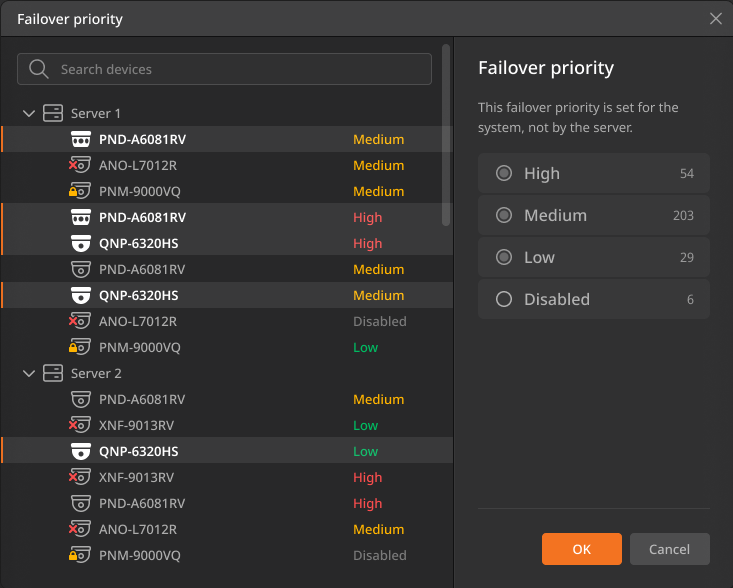
Set the failover priority for devices connected to the clustered servers. If an issue occurs with a server, the devices connect to another server based on their failover priority, allowing monitoring and video recording to continue.
Note: Device failover priority is a system-wide priority that shows all servers.
To set device failover priority
- In the Failover tab, toggle Enable this server to take devices from offline servers to On.
- Click Failover priority.
- In the Failover priority dialog, set the priority for the device.
- Choose from High, Medium, Low, or
Disabled.
- If you select Disabled, the device will not be moved to a failover server when the server fails, and it will not be available for monitoring or video recording.
- If there are insufficient quantities to move to another server in the event of a server failover, a caution icon appears next to the server. In this case, devices with higher priority will be moved first, and devices can be moved randomly if their priorities are equal.
- Even if the priority is set to High, the Failover function won’t work if there are not enough devices available to connect to the failover server.
- To select multiple devices, press and hold [Shift] or [Ctrl] and select devices.
- Choose from High, Medium, Low, or
Disabled.
- After completing the settings, click OK.
Failover due to storage failure
In addition to failover caused by general network disconnections, the BLAZE system performs failover when a serious problem occurs in a server's recording storage (main storage).
Conditions for operation
- Failover starts when all main hard drives mounted in the server become unwritable.
- If even one hard drive is functioning normally, failover does not occur.
- The state of backup storage does not affect this failover.
Checking server status and notifications
- The failed server itself remains active on the network and functions such as live monitoring continue to operate, but recording is not performed.
- A storage failure notification is generated. However, if the server's network connection is lost, the notification message is replaced with a network disconnection failover message.