
Adding a device with auto scan
Automatically search for cameras or devices connected to the local network and quickly register them by adding them to the selected server. The auto-scan feature includes devices not only on the same local network as the server but also devices on other networks that are separate from the server.
Depending on the network and device environment, some devices may be omitted during large-scale scans; for environments with thousands of devices, adding devices by IP address is recommended.
Note: To enhance security, BLAZE prioritizes the use of the HTTPS protocol when attempting to connect to registered devices that support HTTPS.
To add a device with auto scan
- Settings > Devices.
- On the Device settings page, click Add device > Auto scan.
- In the Add device dialog, under Search with and add to, select the server to add the device to.
- This step applies only when the system is configured as a cluster with two or more servers.
- If necessary, under Authentication credentials, enter the device username and password, then click Scan.
- From the scan results list, select the desired devices and click Add N selected.
- Keyword search: If 10 or more devices are found, a search menu appears at the top. You can search by model, brand, IP, MAC, or status using keywords. Only devices that contain the entered string as a continuous sequence (without breaks) are shown in the results. (e.g., searching for "AB" matches "ABCDE" but not "A B".)
- Multi-selection: Hold [Shift] and click to select a range of multiple devices at once.
- Click Finish.
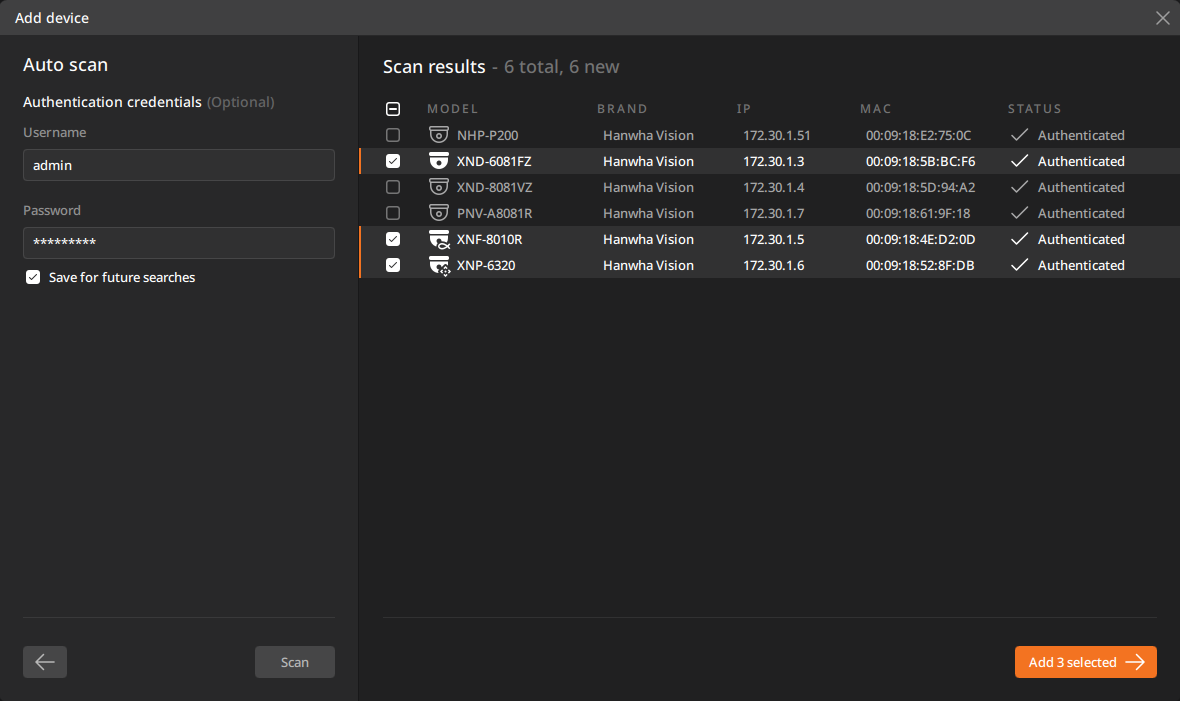
Viewing the status of devices in auto scan results
When devices are discovered by auto scan, you can view the model, brand, IP address, MAC address, and status of each camera or device in the scan results. Depending on the device status, you may need to set an initial password or enter authentication credentials to register the device to the server successfully.
- Entering authentication credentials such as username and password is optional. If you do not enter them, the device status in the scan results will be shown as Not authenticated.
- Enter the username and password and select Save for future searches to store the credentials. Future scans will not require re-entering these credentials.
- Click
 at the top of the scan results list to select all addable devices. If you do not select specific devices, all devices in the list will be added.
- Disabled devices in the list cannot be selected or added.
- The statuses of devices that appear in the scan results are as follows:
Item Description Added The device is already added to the server and is disabled in the list. Authenticated The device has been authenticated. Needs password The device's initial password has not been set. - When you select a device with the status "Needs password", the Set password dialog appears. Set the device's password and complete the addition.
- When setting a password, follow the device-specific password rules.
Not authenticated The device has not been authenticated. - Selecting a device with the status "Not authenticated" opens the Authenticate dialog. Enter the device username and password to authenticate and add the device.
Network error The device is powered off or disconnected from the network. The device will also show a status of "Network error" if: - The PC where the server is installed and the device are on different IP bands.
- The device's IP address is duplicated.
- The device is located externally and its port is blocked by the router's firewall.
- The device's driver or firmware has been updated, causing compatibility issues.
3/4 channel added For multi-channel cameras, 3 out of 4 channels are added. - If some channels of a multi-channel camera are registered to a specific server, the remaining channels can only be added to the same server.
Account blocked If the camera password is entered incorrectly 5 times or more, the camera will enter a locked state for a period of time. During this time, the camera cannot be accessed. Ready The device can be added immediately. A device with the status "Ready" meets the following conditions: - The device has been authenticated.
- The device's initial password has been set.
- The network is connected using a static IP address.
Adding a device with an authenticated username and password
Devices with authenticated usernames and passwords can be registered immediately after auto scan. Unauthenticated devices require setting an initial password and IP address before registration.
- Set an IP address after setting a password for devices with factory default settings. When setting the IP address, enter the subnet mask, gateway, port, etc.
Adding a multi-channel device
Multi-channel cameras equipped with multiple sensors can monitor multiple areas while efficiently utilizing network bandwidth and storage space. For multi-channel cameras without user authentication, initial password and IP information must be configured before registration.
- When you add a multi-channel camera, all channels of the camera are added. You cannot select individual channels to add.
- Channels of a multi-channel camera are listed in order under one model name.