
Configuring device settings
Configure detailed settings for devices added to BLAZE.
Note:
- Only users with the Administrator role or device settings permission can change camera settings. However, only an Administrator can add or delete devices.
- Availability and configuration options may vary depending on the camera's type or specifications.
Device settings page
On the Device settings page, select a device from the device list to open the Settings panel and set device details.
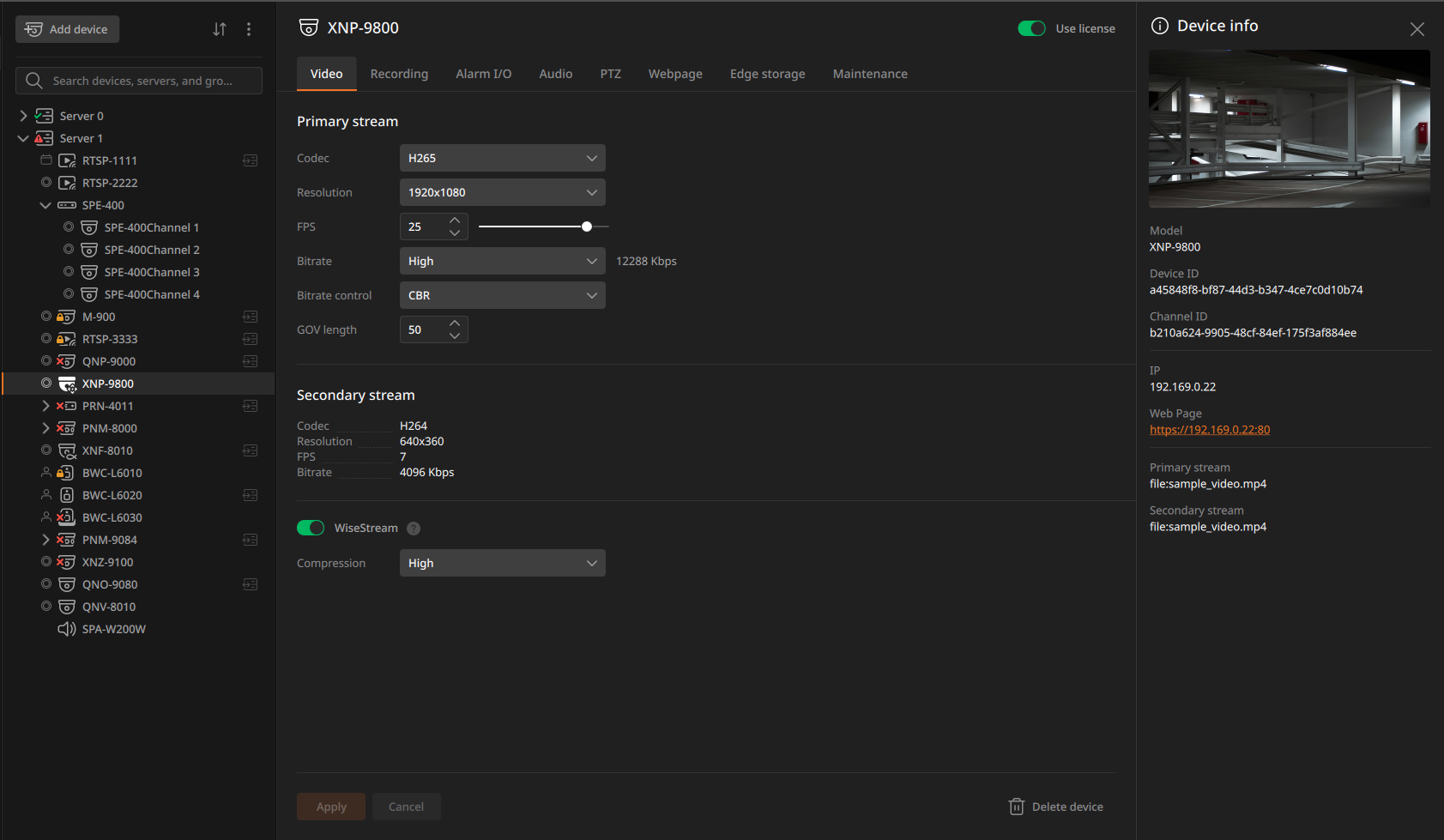
Viewing device information
View device details in the Device info panel.
Viewing tabs on the Device settings page
The settings panel consists of multiple tabs. The available tabs vary by device.
- Select a tab to display detailed settings. Above the tabs, the status banner for the selected device appears.
- Info banner (blue): Provides reference information.
- Warning banner (yellow): Appears when user action may be required due to changes or potential issues, even though no error has occurred.
- Error banner (red): Appears when a problem affects system functionality.
- After completing settings in a tab, click Apply to save the changes.
- Selecting multiple cameras and changing settings configures common specifications for the selected cameras at once.
- The available settings depend on the number and types of selected devices.
-
- Single device selected: All setting tabs supported by that device are displayed.
- Multiple devices selected: Only tabs for features commonly supported by the selected devices are displayed. If there are no common settings, a "There are no common settings to display" message is displayed and configuration is not available.
- More than 256 devices selected: The settings function is unavailable. A "Selection limit exceeded" message is displayed.