
Changing a device's information
Re-authenticate the password or rename cameras and devices registered in BLAZE.
To re-authenticate a device password
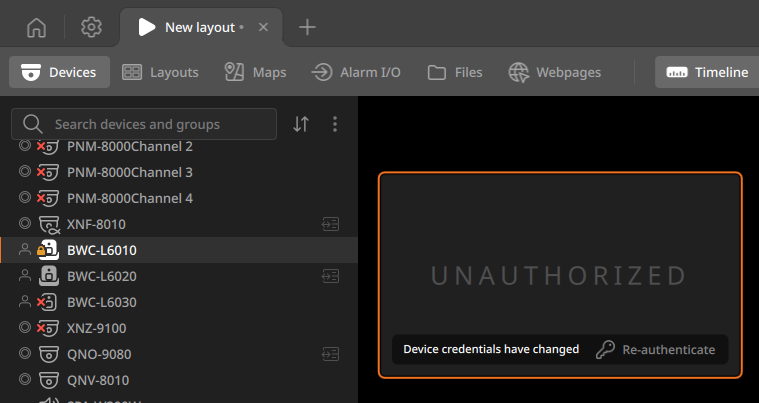
BLAZE requires camera authentication when viewing live video or configuring recording and event rules. If a device's password was changed externally and the connection was lost, or if authentication failed, re-authenticate immediately from the screen panel in View mode.
Note: Re-authentication is not supported in Playback mode; it is only available in live streaming.
- On the Home page, click View.
- In the View tab navigation bar, click Devices.
- From the device panel list, select the device with a failed authentication and place it in a layout.
- In the screen panel for that device, click Re-authenticate.
- In the Re-authenticate dialog, enter the device ID and the updated password.
- Click Apply to attempt authentication.
- If authentication succeeds, live video plays immediately.
- If authentication fails, try again. Entering the wrong password repeatedly will lock the camera account. (For Hanwha Vision cameras, the account is locked after 5 or more failed attempts.)
Note:
In Settings > Devices, select a device with failed authentication and re-authenticate it using the alert banner at the top of the Device settings panel.

To rename a camera
- Click Settings > Devices.
- In the list of devices, select the desired device and right-click it.
- From the shortcut menu, click Rename and enter a new name.
- Device names can contain up to 64 characters.
Note: A device can also be renamed by clicking the device name at the top of the Camera settings panel. Enter the new name and click Apply.