
Using a map
Use the registered map to monitor your environment.
To use a map
- On the Home page, click View.
- Click
 button on the Tab bar to
open the New layout tab.
button on the Tab bar to
open the New layout tab.
- Click
- Click Maps on the View tab navigation bar.
- Drag the desired map in the Maps panel to the Scene panel.
- Double-clicking the desired map will also add it.
- Enter a map name in the search bar to quickly find a map; the search is not case-sensitive.
- In the Maps tab, only one map can be executed. Even if you select multiple maps to add to the screen, the selected map will be executed in each map tab.
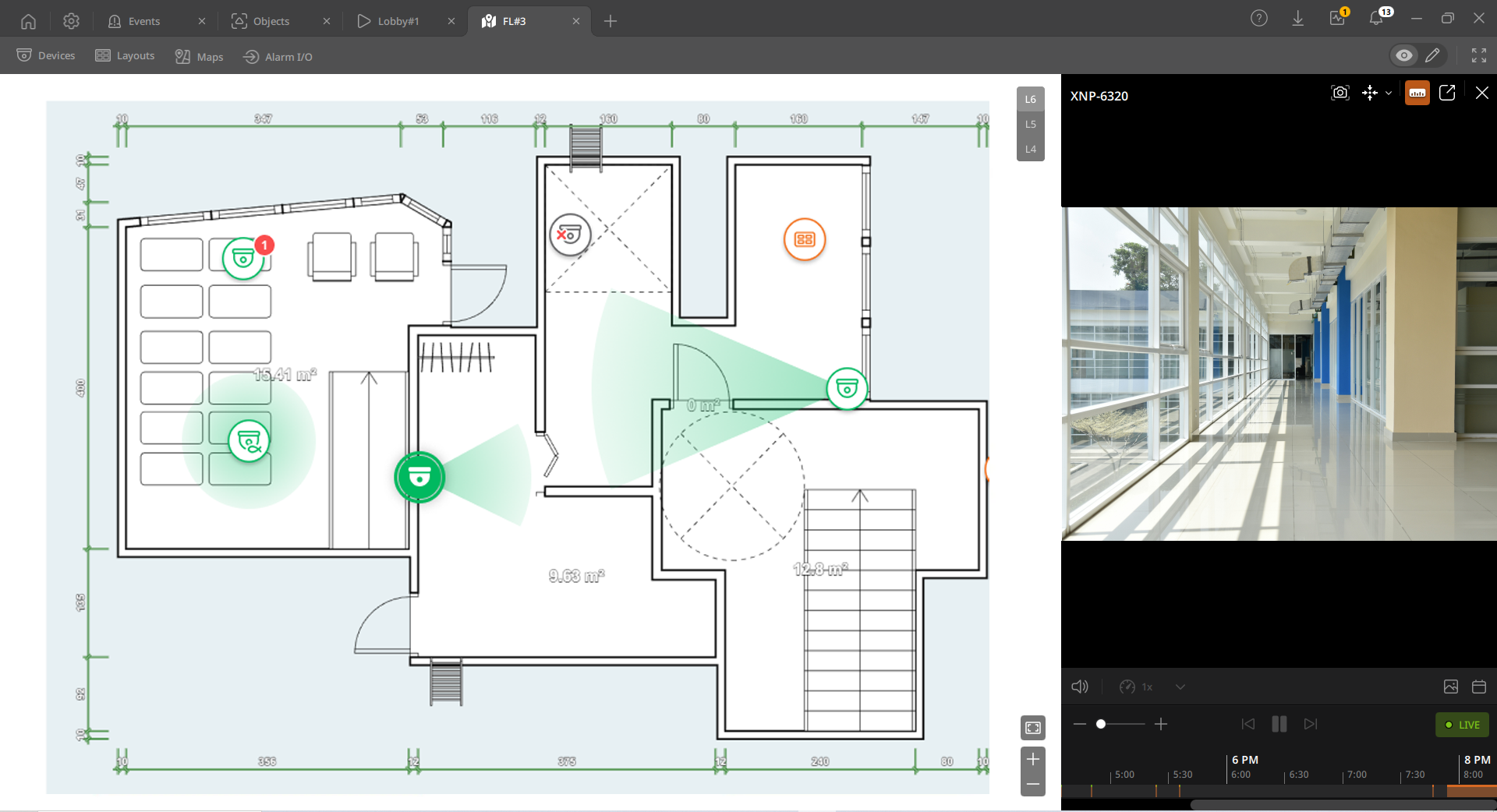
- The map is displayed in the Scene panel.
Viewing the group of maps
When you group multiple maps, a floor selector icon will appear at the top-right. Click the map of the desired floor to view.
- For more information on grouping maps, see Grouping maps.
Zooming in/out the map
Zoom in or out the map.
- /
 : Zoom in or out the map.
  : Automatically adjust the size of all items placed on the map and the map to display the entire map at a glance.
Playing recorded videos on the map
When a device placed on the map is clicked, a Map info panel appears. Watch the video from that panel.
- For more information about how to play the video, see Playing the video.